
Library
The library is the manga you chose to keep, with your progress in each.
Adding manga
Open Browse, pick a source and look through its Popular and Latest tabs, or search it (with the source's filters). Global search searches every source at once. You can also paste a link to a manga from a supported site. See Getting started for the steps.
On a manga's page, Add to library keeps it, with its chapters, in your library. The cover is saved so the library works offline; right-click a page in the reader and choose Set as cover to use another picture.
Organising
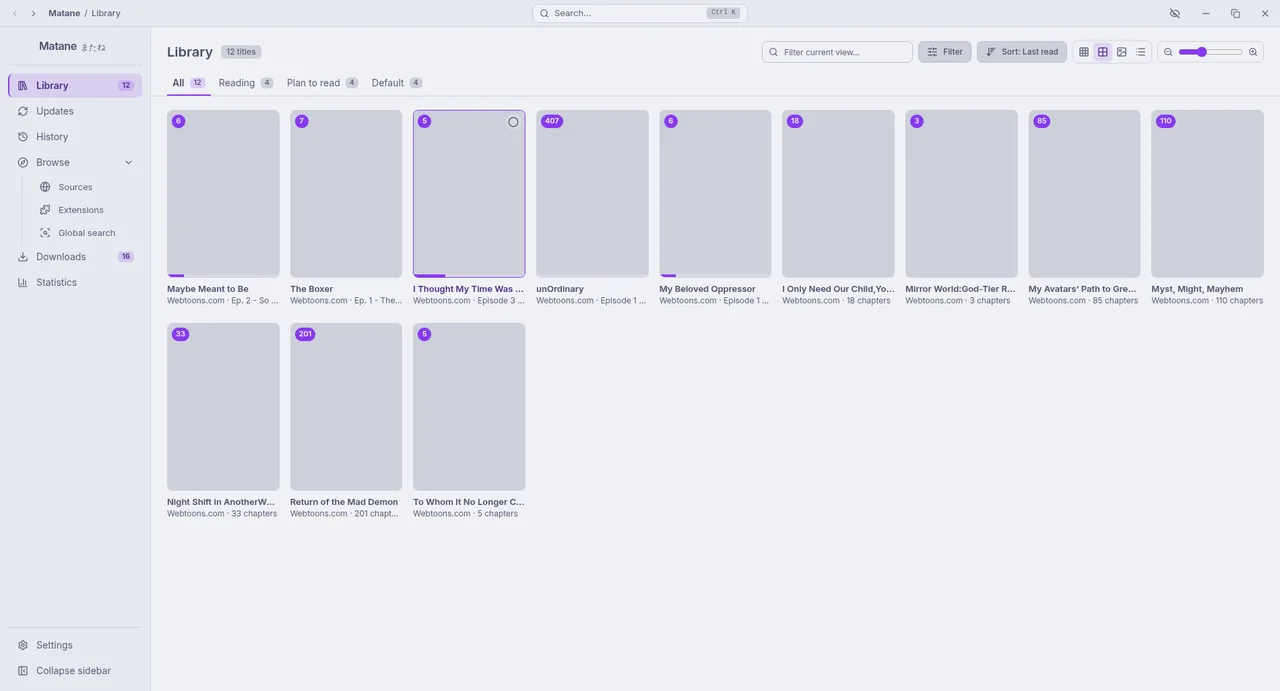
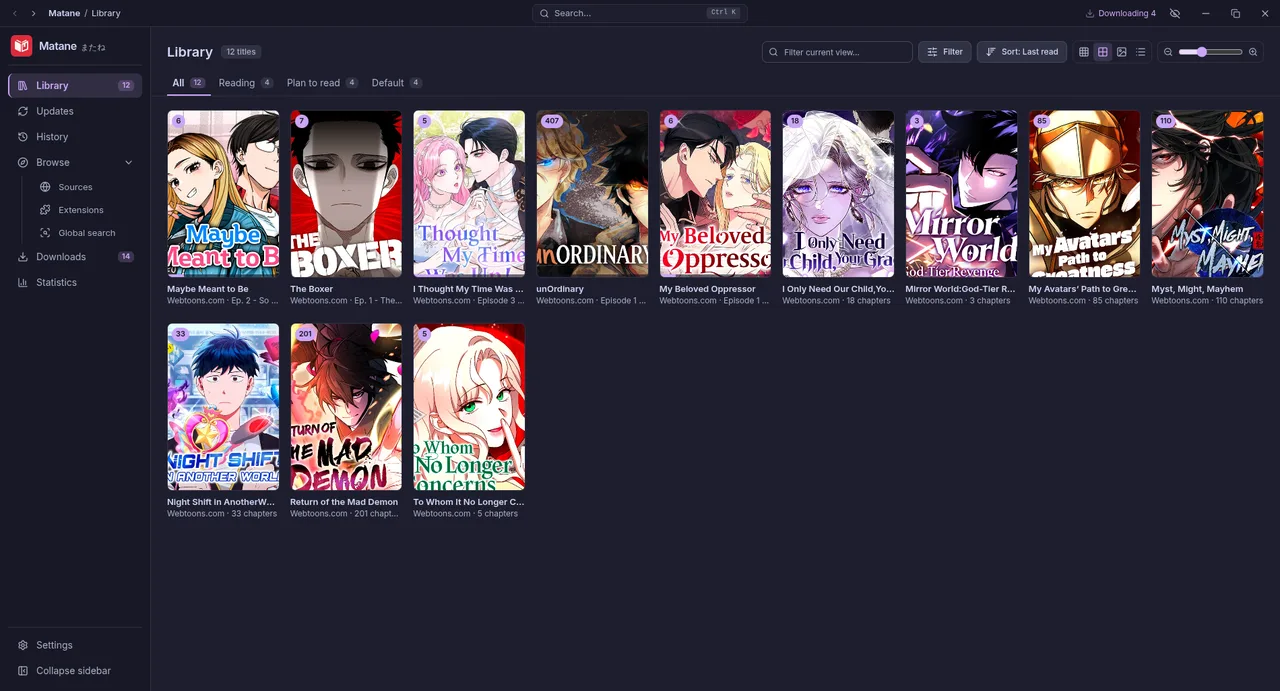
- Categories appear as tabs (Categories).
- Display: comfortable grid, compact grid, covers only or a list, with an adjustable cover size.
- Filter by unread, started, downloaded, bookmarked, status or source, and sort by title, last read, latest chapter, date added, unread count or total chapters.
- The search box filters the current view; Ctrl+K finds any manga in your library (Command palette).
- Select several manga to mark them read or unread, change categories, migrate or remove them. Most things also have a right-click menu.
Progress and history
Matane remembers the page you stopped on in every chapter. Continue on a manga's page opens the next chapter to read; History lists what you read recently. To read without leaving a trace, use Incognito; for numbers over time, see Statistics.
Chapter list
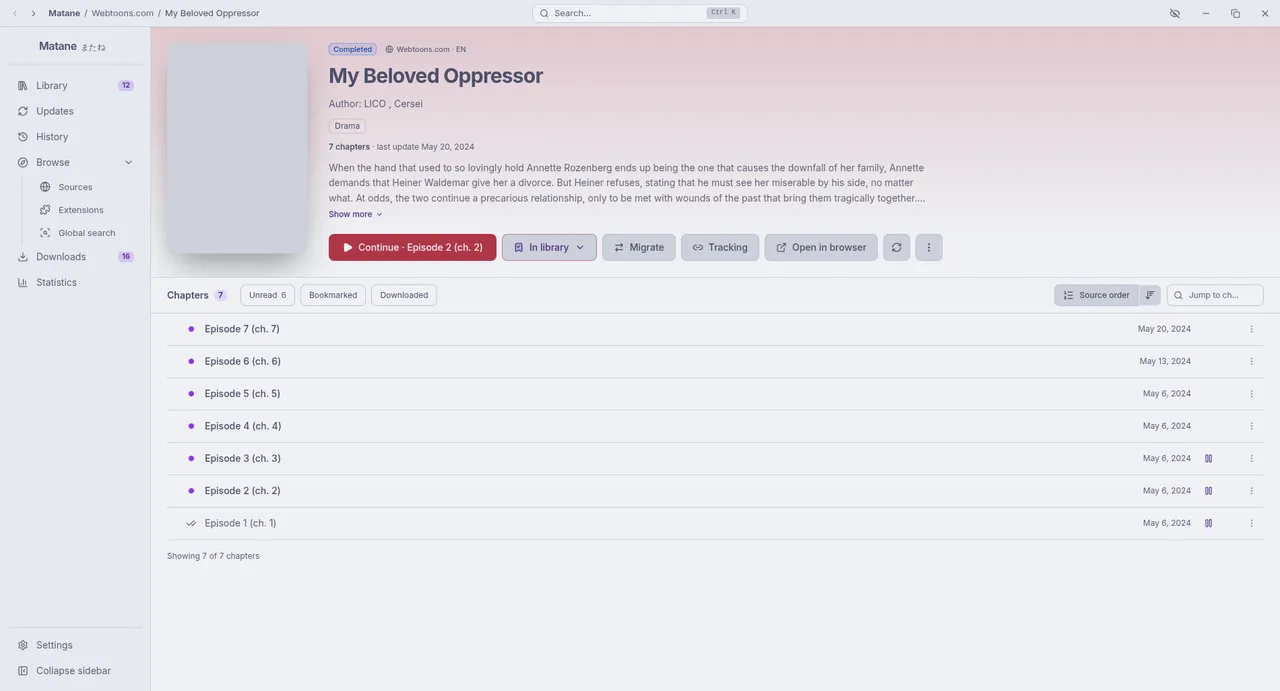
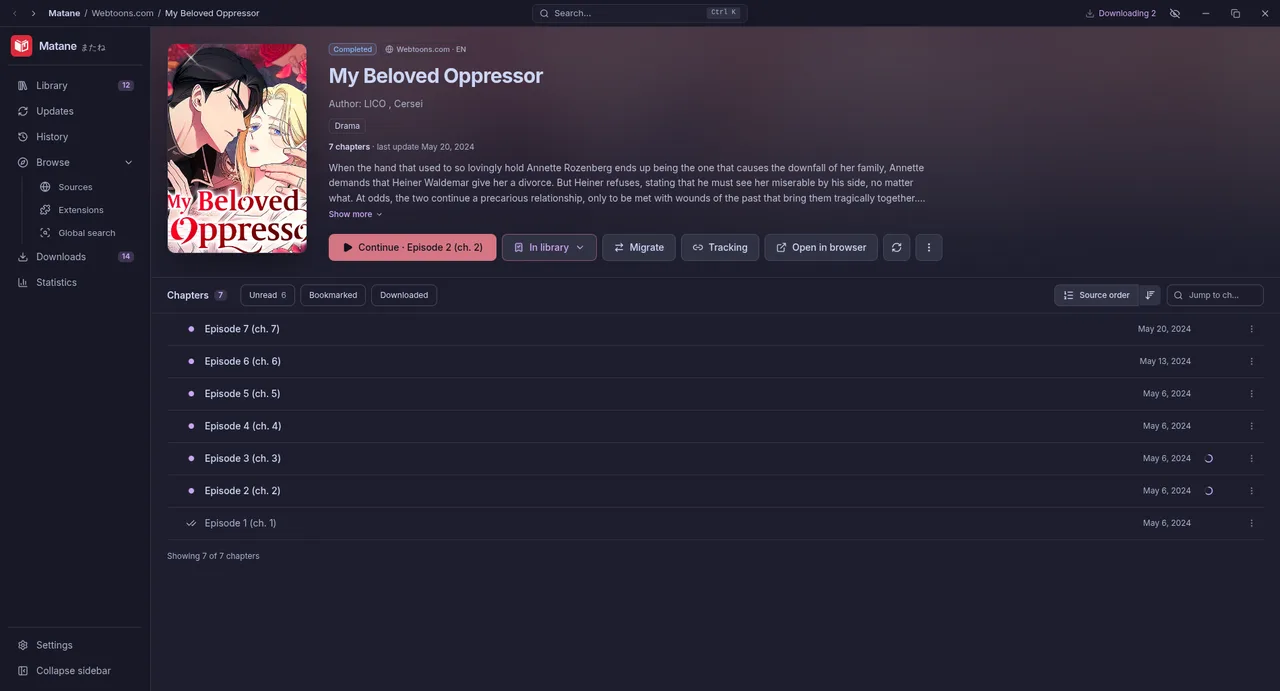
On a manga's page you can filter chapters (unread, downloaded, bookmarked, a scanlation group), sort them, jump to a chapter number and mark the previous chapters as read. Preferred scanlation groups decide which version of a chapter is shown when several groups translated it.