
Backups
A backup is a single file, matane-backup-YYYY-MM-DD.zip. It contains your library, categories, chapter read status, bookmarks and progress, history, reading statistics, per-manga reader settings, custom covers, repositories, the list of installed extensions with their settings, and the app settings.
It does not contain downloaded chapters (they stay in your download folder), caches, or passwords.
Making backups
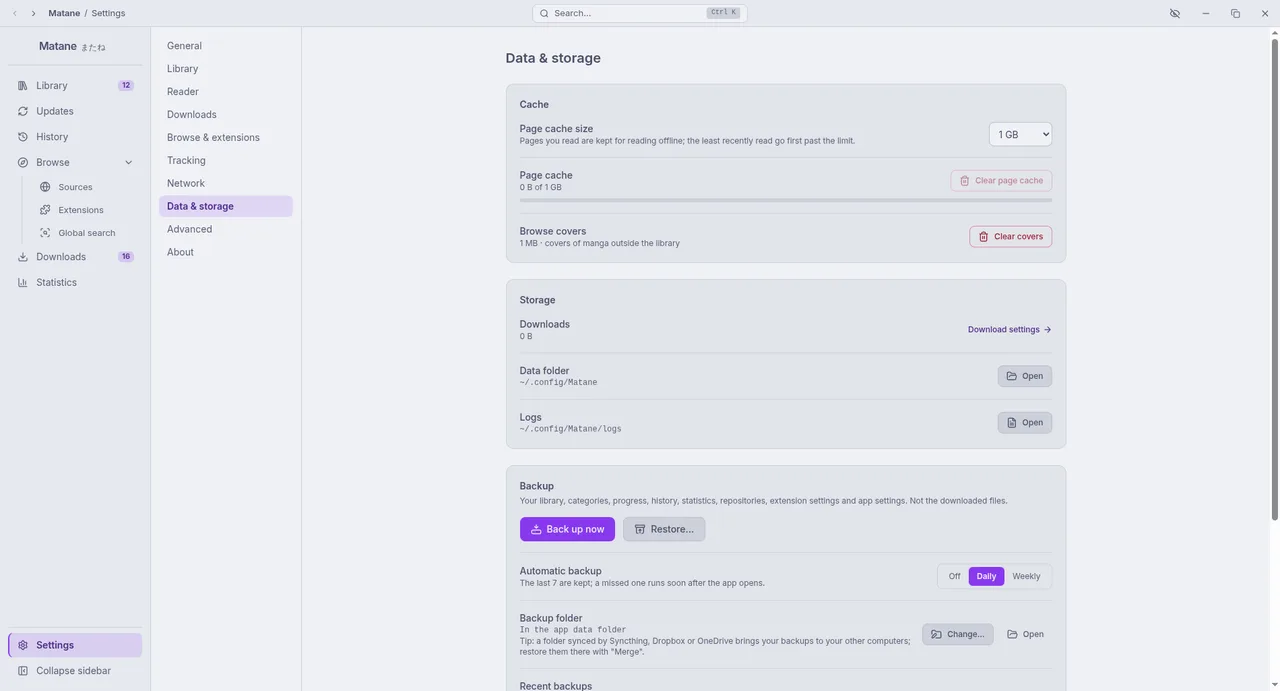
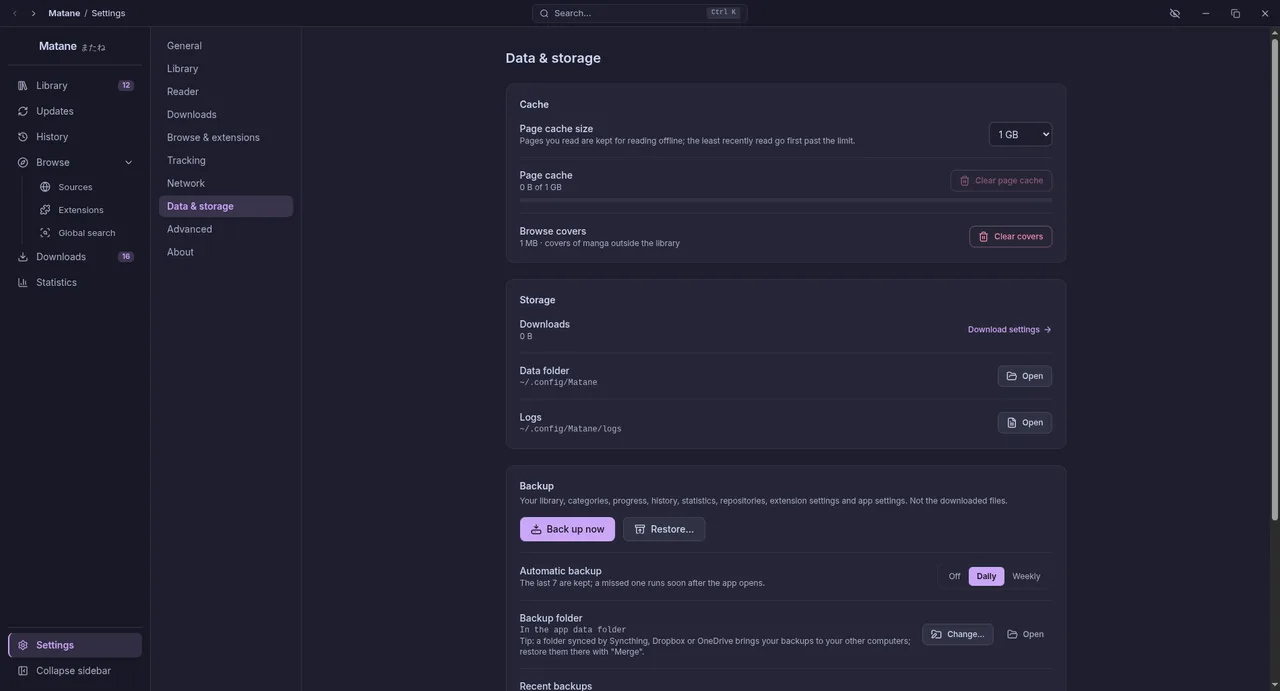
Settings → Data & storage → Backup:
- Back up now writes a backup to the backup folder.
- Automatic backup: daily (default), weekly or off. The last 7 automatic backups are kept; a backup that was missed while Matane was closed runs soon after it opens.
- Backup folder: by default inside the app data folder. A folder synced by Syncthing, Dropbox or OneDrive brings your backups to your other computers.
Restoring
Restore… (or Restore next to a recent backup) shows what the backup holds first, then asks how:
- Merge (recommended): combine with what is already here. A chapter is read if it is read in either; the furthest progress wins; categories are joined; nothing is removed. App settings are only restored if you tick the box.
- Replace: remove the current library, then restore. Matane makes a backup of what is here now before replacing anything.
Extensions that are not installed are listed in the preview; their manga come back as "source not installed" until you install them from Extensions. Downloaded chapters are linked again when their files are still in the same place.
Moving to a new computer
- On the old computer: Back up now, copy the file over (and the download folder, if you want your downloads).
- On the new computer: install Matane, add the same repositories, then Restore… with Merge.
Importing from Mihon or Tachiyomi
Restore… also opens a Mihon/Tachiyomi backup (.tachibk). Pick the file; extensions you do not have yet can be installed from the dialog:
- The dialog lists every source in the backup with the number of manga. Matane matches each one to an installed source by itself (by Mihon's source id, which a port with the same name and language gets too, or by name); change the choice, or set Skip. For a source with no match, an Install button appears when one of your repositories has an extension that looks like it; after installing, the source is matched again.
- Import merges into your library: favourites go into the library, other manga come in as history only. Read chapters, bookmarks, progress, categories, history and reading time come with them. Importing the same file again changes nothing, so you can install more extensions and import again to fill in the sources that were skipped.
Limits: manga and chapters keep the addresses Mihon stored, so the source's extension must use the same ones (a port that keeps the site's paths does); trackers, repositories and app settings are not imported; a Mihon backup is always merged, never replaced.