
Getting started
This page takes you from nothing to your first chapter. If you want to know what Matane is first, read the Introduction.
Installation guide
Downloading Matane
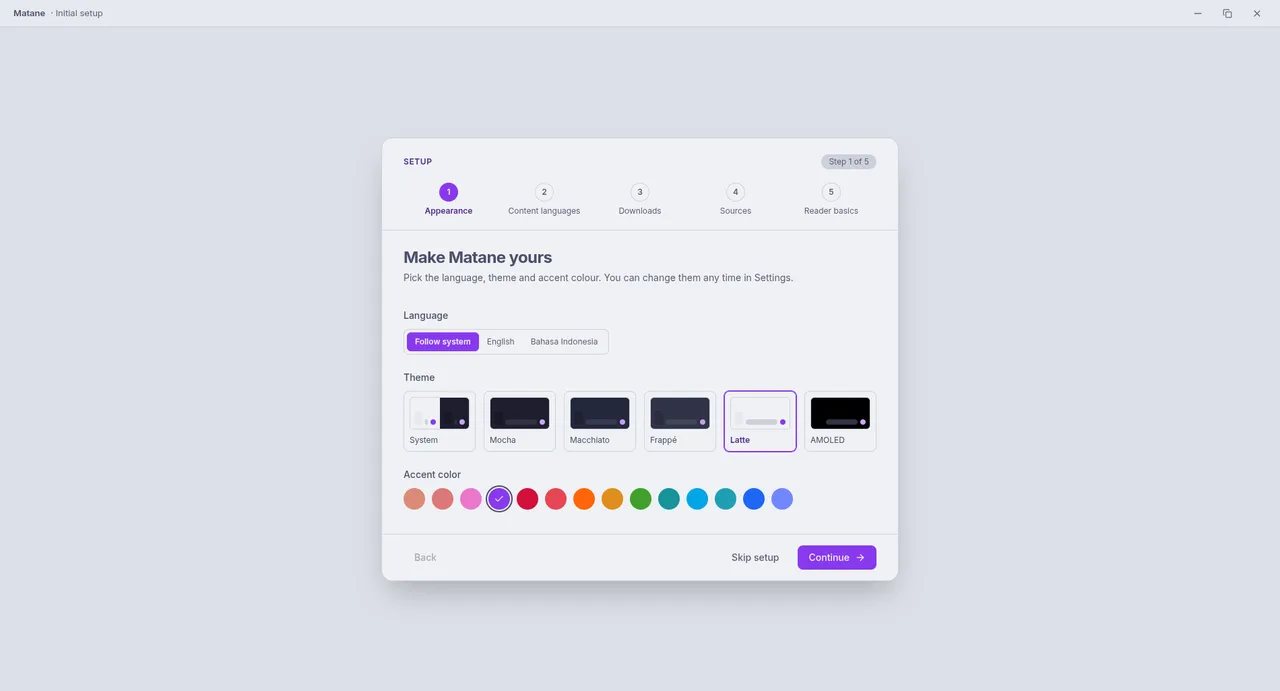
- Go to the Download page. It offers the right package for your system.
- Open the file you downloaded: run the installer on Windows, drag the app to Applications on macOS, or make the AppImage executable on Linux (all packages).
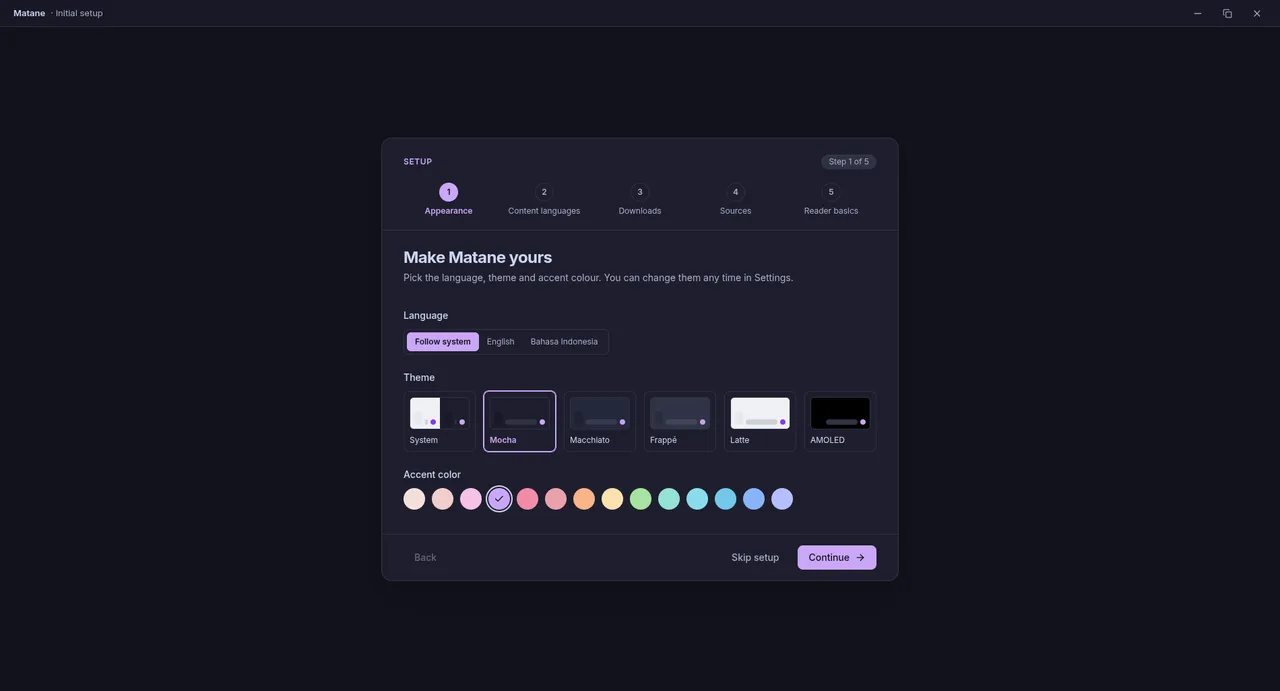
- Start Matane. A short setup asks for the app language, theme and accent colour, the languages you read, the download folder, whether to install sources now, and shows the reader basics.
Unsigned builds
The Windows and macOS builds are not code-signed yet, so your system warns you on first run. Here is how to get past it. Download only from the project's Releases page.
Adding sources
Matane hosts no manga and ships with no repositories. A source comes from an extension, a small program that reads a website for you. There are three ways to get one.
Matane hosts no content
What you add, and what it shows you, is your choice and your responsibility. See the FAQ.
External repositories
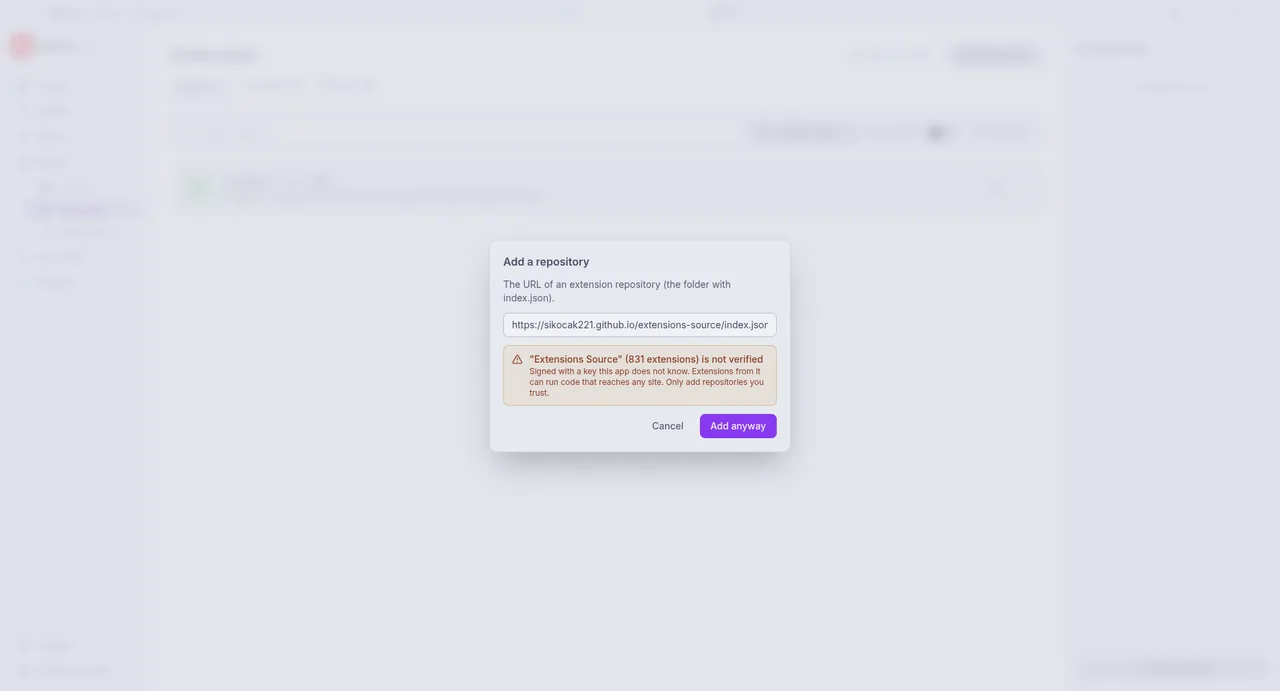
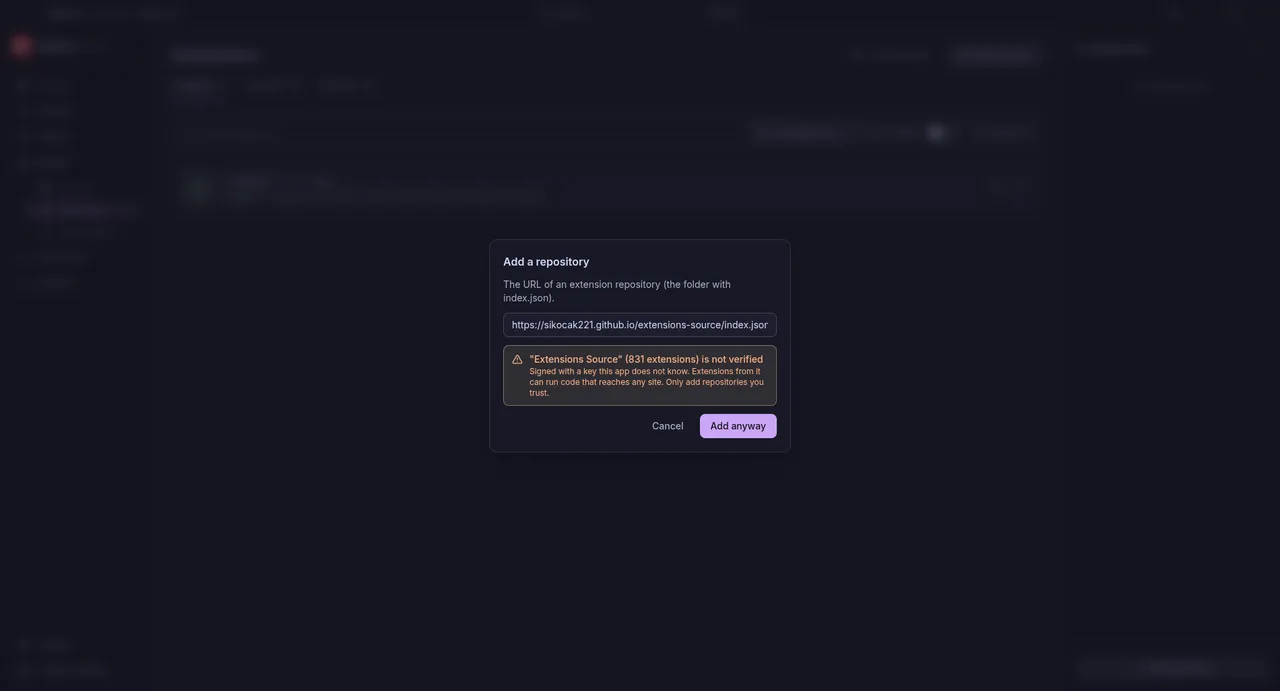
A repository is a web address that someone publishes. You get the address from the people who run it.
- Open Browse, Extensions and choose Add repository.
- Paste the repository address and choose Check repository. Matane shows what it contains and who signed it.
- Decide whether to trust the key, then add the repository.
- Open the Available tab and Install the extensions you want. A dialog shows the details; nothing is written until you confirm.
The full explanation, including what trust means, is in Extensions and repositories.
Local files
Manga already on your computer (CBZ files, folders of images) appear as a source called Local files. See Local files.
Loading an extension from a folder
If you have an extension as a folder (you wrote it, or a developer gave it to you), load it from Settings, Advanced. See Writing extensions.
Adding manga to your library
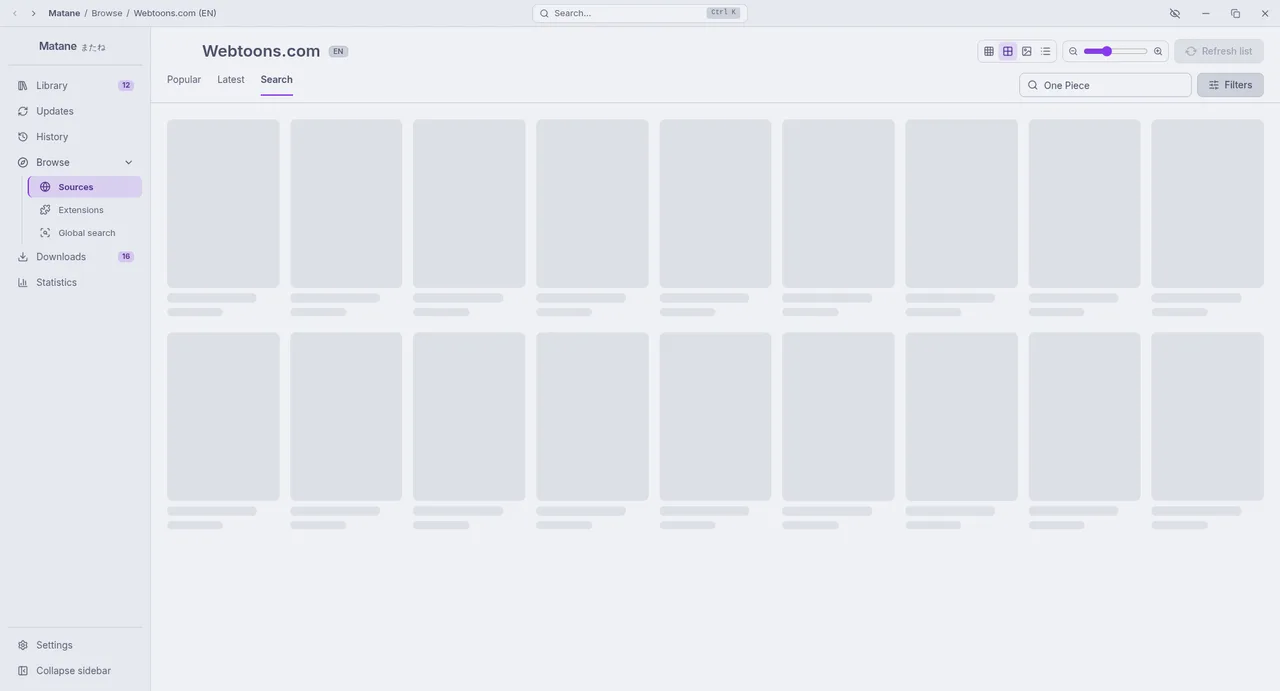
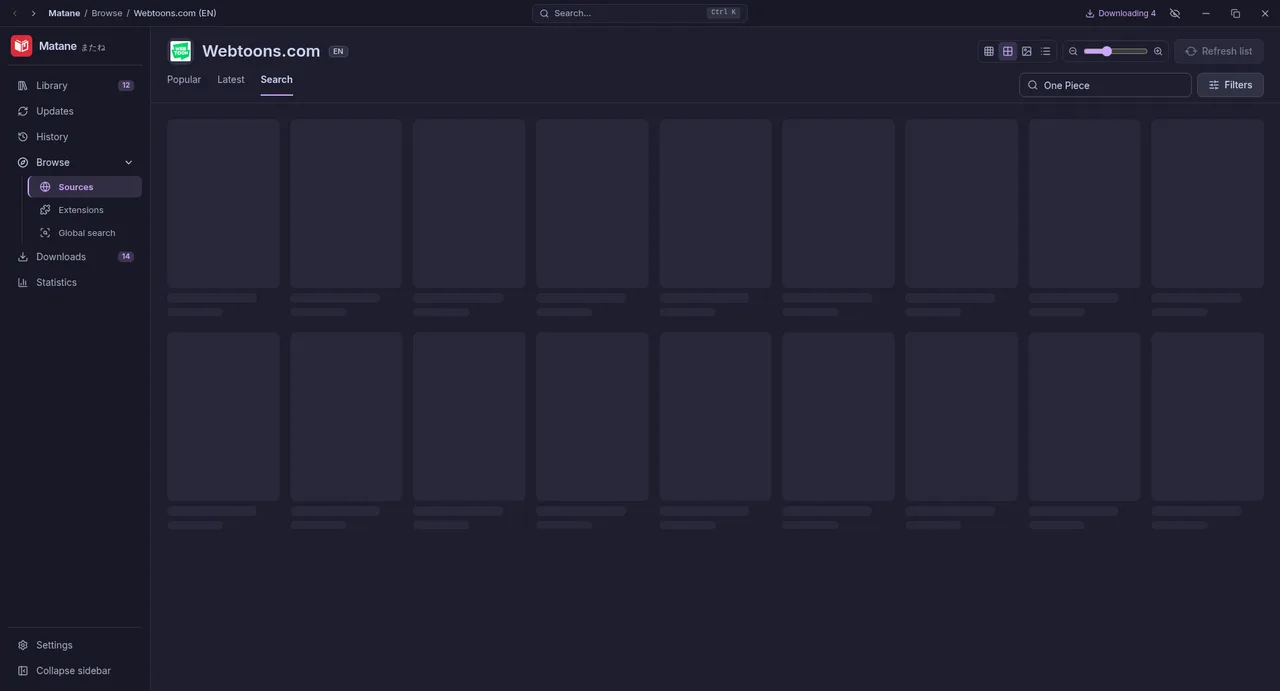
- Open Browse and pick a source.
- Look through its Popular and Latest tabs, or use the search box.
- Open a manga to see its description and chapters.
- Choose Add to library. It now appears in Library, and Matane remembers your progress in it.
To read, choose Continue reading or click a chapter. The next time, Continue opens the right chapter.
Additional setup
Searching with Global search
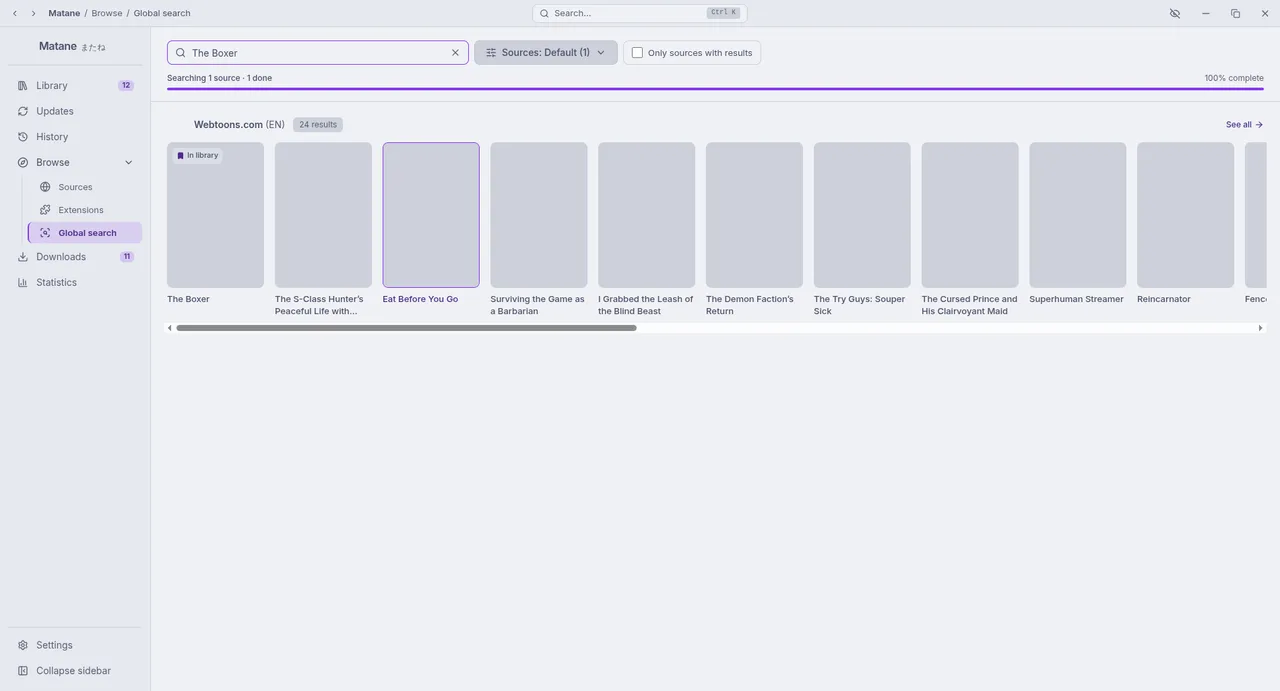
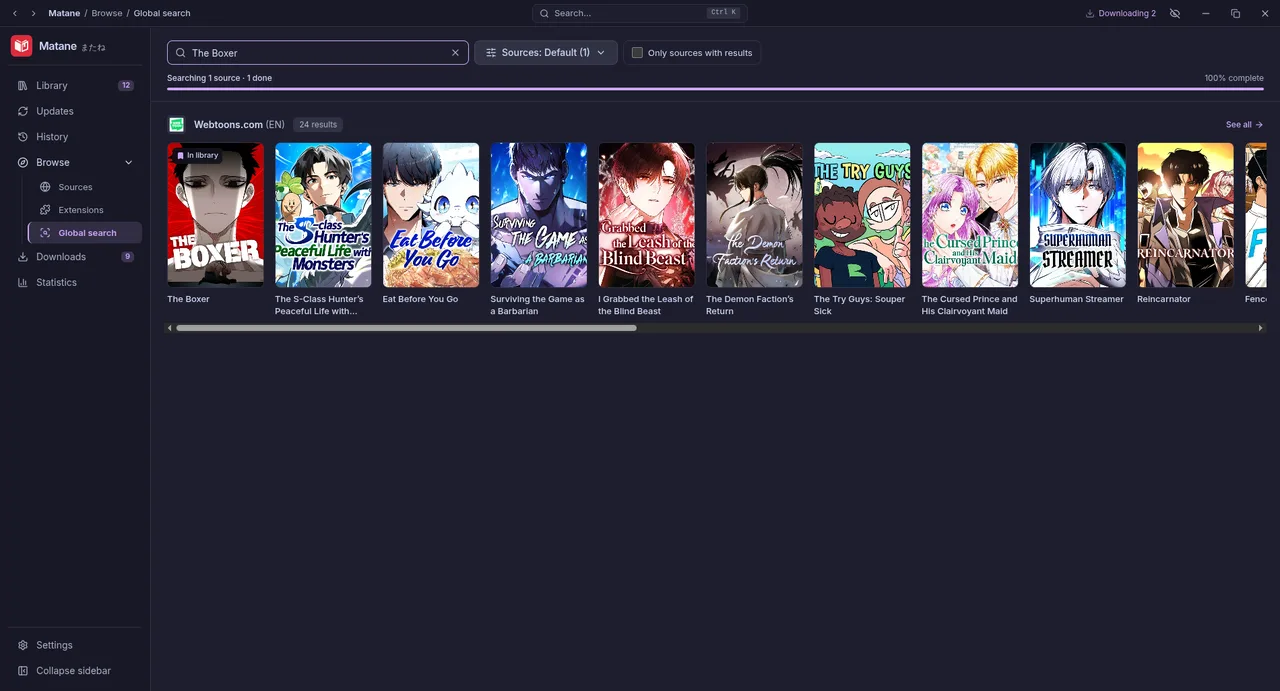
If you do not know which source has a manga, search all of them at once.
- Open Browse, Global search, or press Ctrl+K and pick Search "…" in all sources.
- Type a title and press Enter. The results are grouped by source.
- Open a result, or choose View all to see everything one source found. If a site wants a browser check, choose Verify (Network).
Trouble finding a specific manga?
Try other spellings. Sources spell titles differently. Try the romaji, the English title, or fewer words.
"Shingeki no Kyojin" instead of "Attack on Titan"
Leave out the season or volume. Many sources list everything under one title.
"Mob Psycho" instead of "Mob Psycho 100 Volume 3"
Drop punctuation and subtitles. A colon or a long subtitle can stop a match.
"Fate Zero" instead of "Fate/Zero"
Try another source or language. Not every source carries every title, and your content languages decide which sources you see.
Next steps
- Organise your library with categories, and get told about new chapters.
- Learn the reader: Reader and Reader settings.
- Keep chapters for offline: Downloads and offline.
- Keep your reading list on AniList and others: Trackers.
- Coming from Mihon or Tachiyomi? Import your backup.
- Back up your data: Backups.
- Look through every option: Settings reference.