
Watching and progress
The player
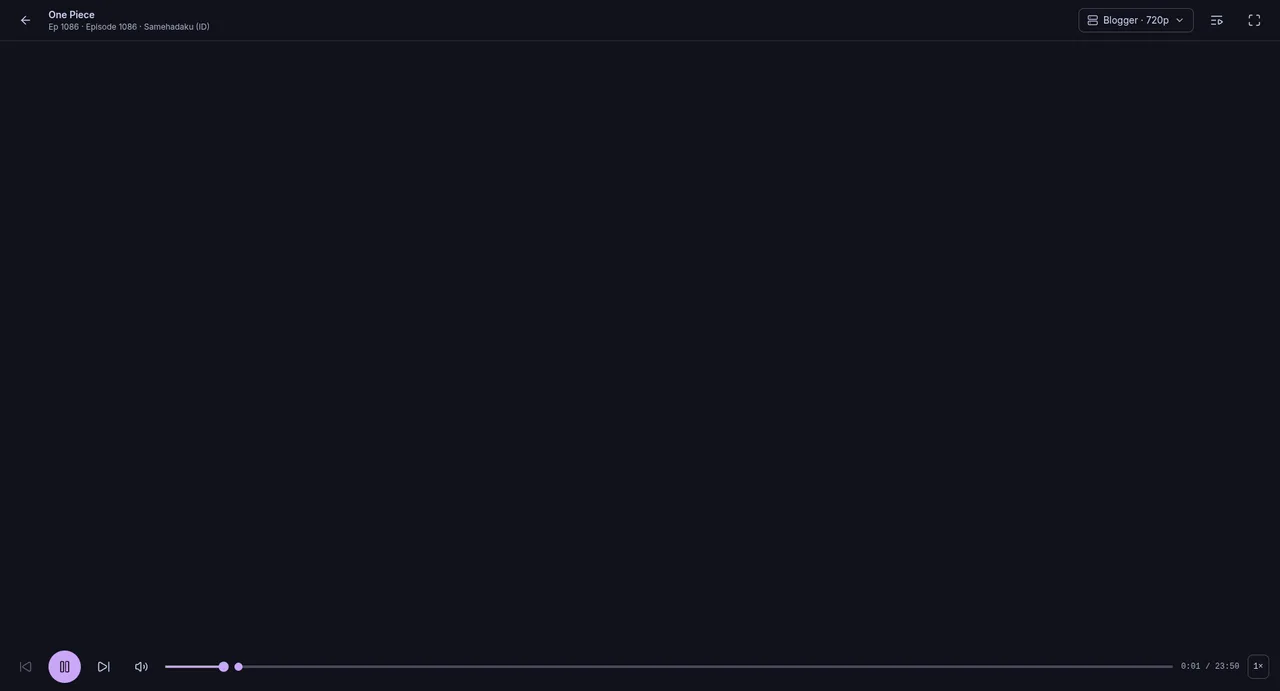
The player is full screen without the sidebar. It plays HLS and MP4. Other containers and codecs depend on what your system's Chromium build supports; a stream that cannot be played gives a clear error with actions (try again, change server) instead of a blank screen.
- Controls: play and pause, a seek bar that shows what is buffered, volume and mute (remembered), speed from 0.5x to 2x (remembered), fullscreen, elapsed and total time, the anime and episode title, and a back button. Controls hide after 3 seconds without movement. Click toggles play, double click toggles fullscreen, the mouse wheel changes the volume.
- Server and quality menu: every stream the extension returns is listed. Switching keeps your position, and a manual choice is remembered for that anime.
- Automatic fallback. The app tries the best candidate first (your last manual choice, then your quality preference, then the server that worked last). If a stream fails, it moves to the next one at the same position, with a short notice, up to three times, and then lets you choose.
- Next episode and autoplay. When an episode ends, a 5-second countdown to the next one starts; you can cancel it, and autoplay can be turned off in Settings.
- Keep the screen awake while playing; media keys work.
Keys for all of this are on Player settings.
Progress
Your position is saved every 5 seconds and when you pause, seek, change episode or close the player or the app. An episode is marked watched automatically when you reach the threshold (85% by default, adjustable from 50% to 100%; at 100% only when the video ends). Once marked, it stays watched even if you rewind.
Resume: if you stopped more than 10 seconds in, and before the threshold, the episode continues from 3 seconds before where you stopped. Watched episodes and ones barely started begin at the start.
Watched status is per episode number: marking one episode marks every variant with that number (for example two sources' versions of episode 5).
Continue watching opens the episode you left unfinished; if that one is finished, the next unwatched episode by number; if you never watched, the first one.
You can mark episodes watched or unwatched, mark everything before an episode as watched, and reset progress.
History
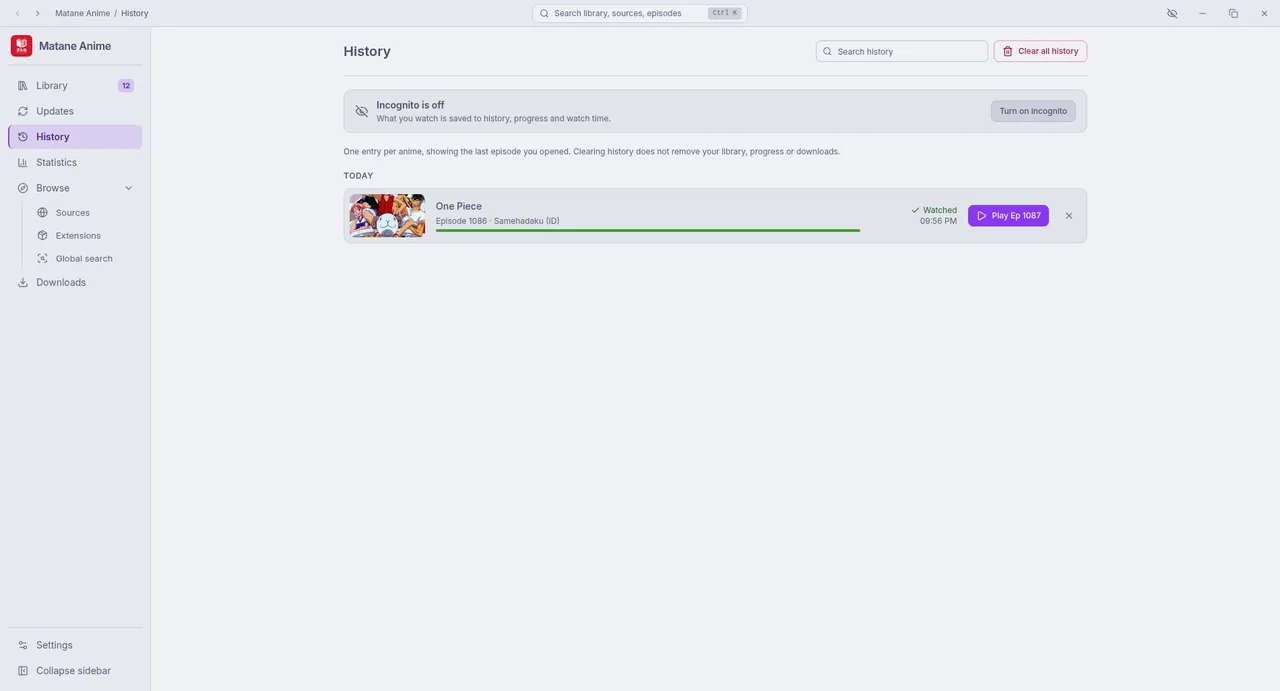
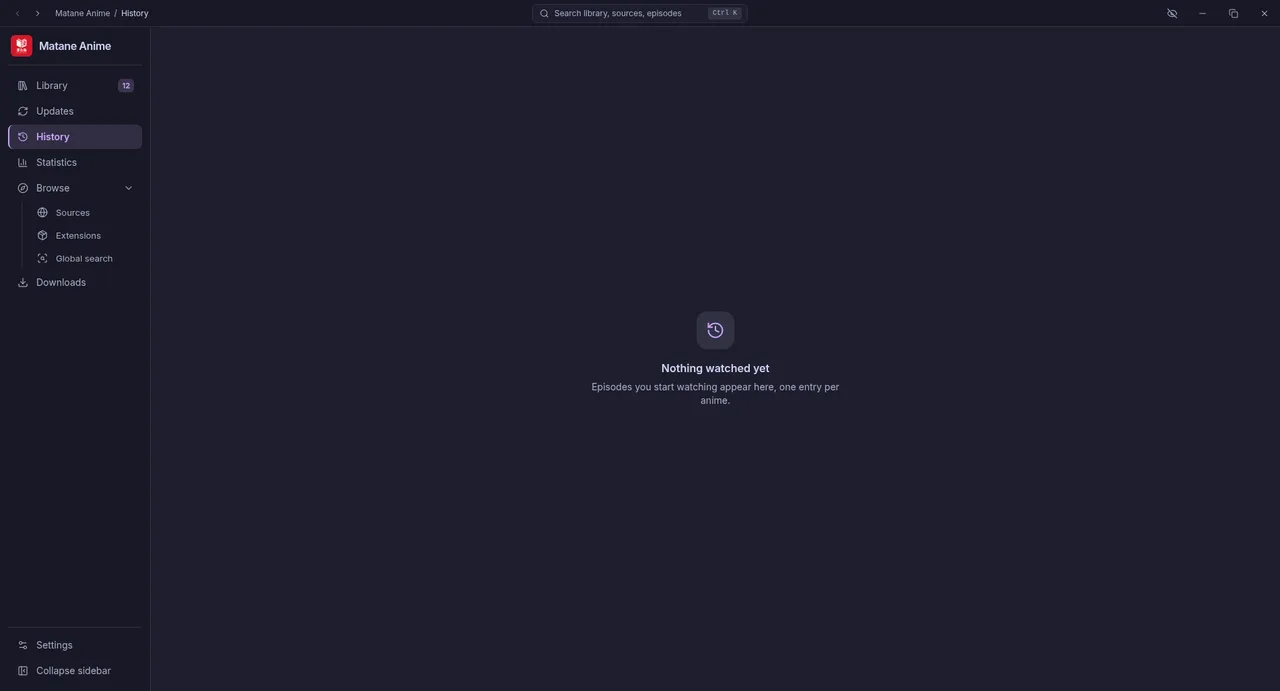
History lists one entry per anime (the last episode, position and time), grouped by date. You can continue, delete an entry, or clear everything. While incognito is on, nothing is added.
Keyboard shortcuts and settings
The default keys, how to change them and the playback options are on Player settings.