
Getting started
This page takes you from nothing to your first episode. If you want to know what Matane Anime is first, read the Introduction.
Installation guide
Downloading Matane Anime
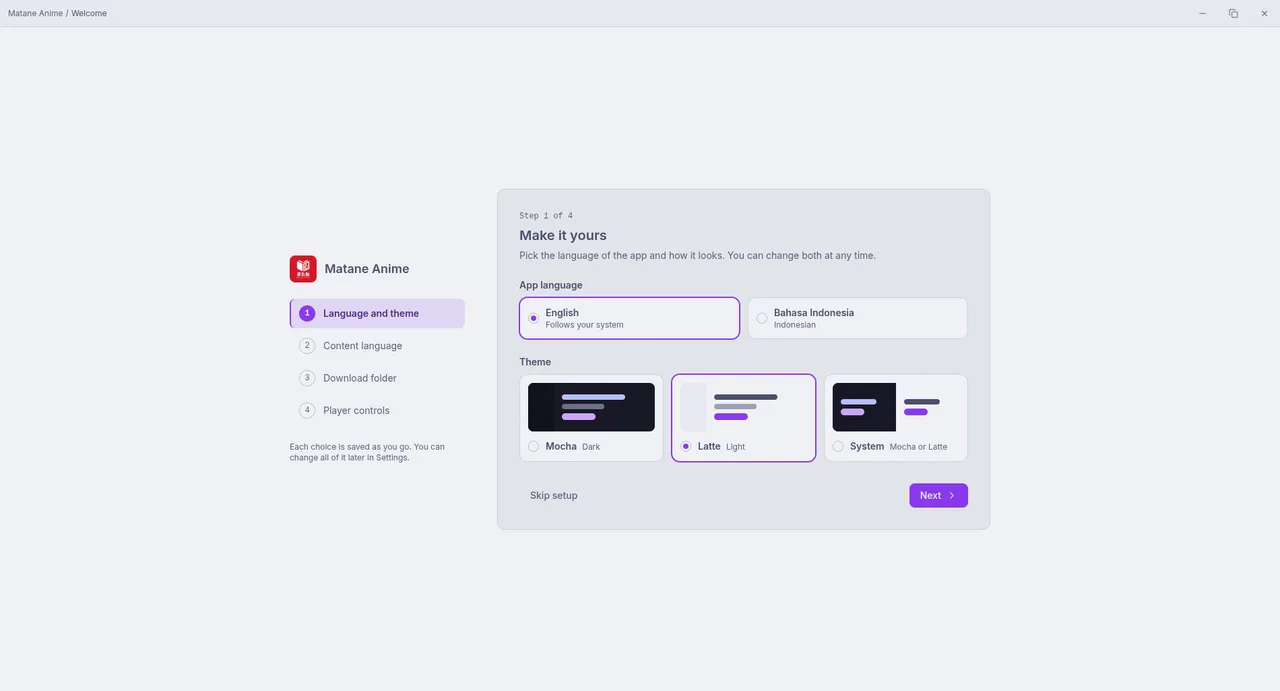
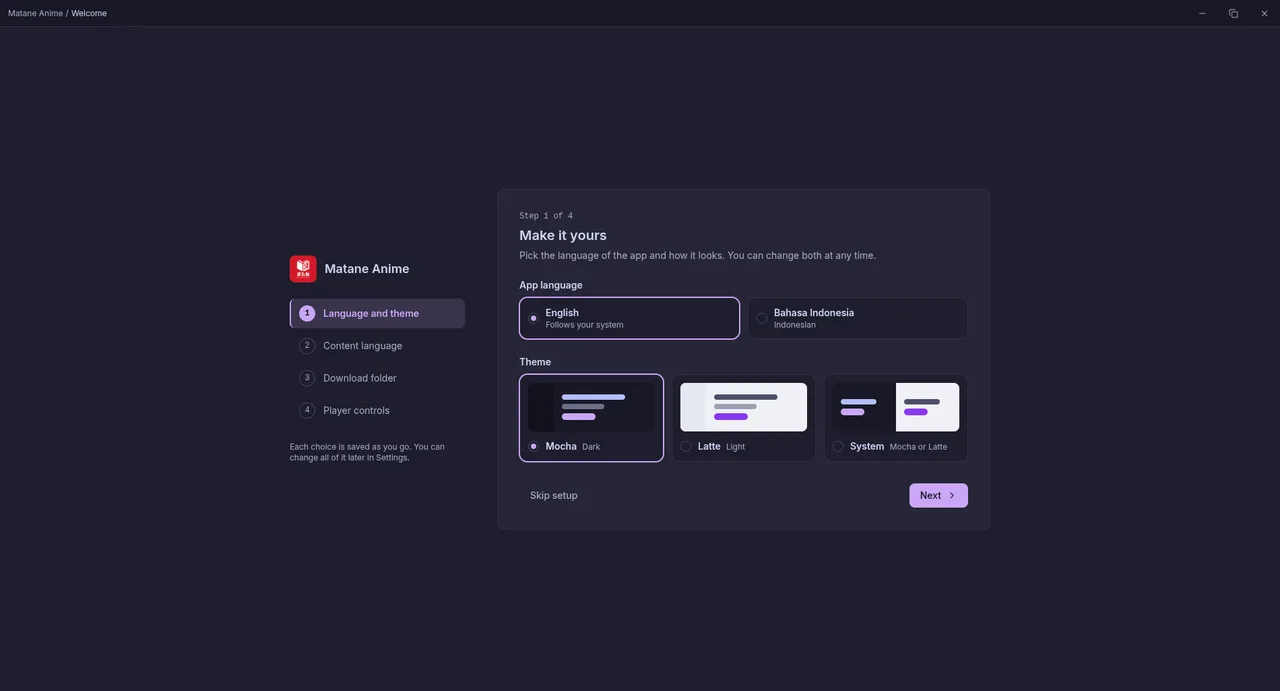
- Go to the Download page. It offers the right package for your system.
- Open the file you downloaded: run the installer on Windows, drag the app to Applications on macOS, or make the AppImage executable on Linux (all packages).
- Start Matane Anime. A short setup asks for your language and theme, the language of the content you watch, the download folder and shows the player controls.
Unsigned builds
The Windows and macOS builds are not code-signed yet, so your system warns you on first run. Here is how to get past it. Download only from the project's Releases page.
Adding sources
The app starts empty on purpose: it has no sources, no repositories and no keys, and it does not suggest any. A source comes from an extension, a small program that reads a website for you. There are two ways to get one.
Matane Anime hosts no content
What you add, and what it shows you, is your choice and your responsibility. See the FAQ.
External repositories
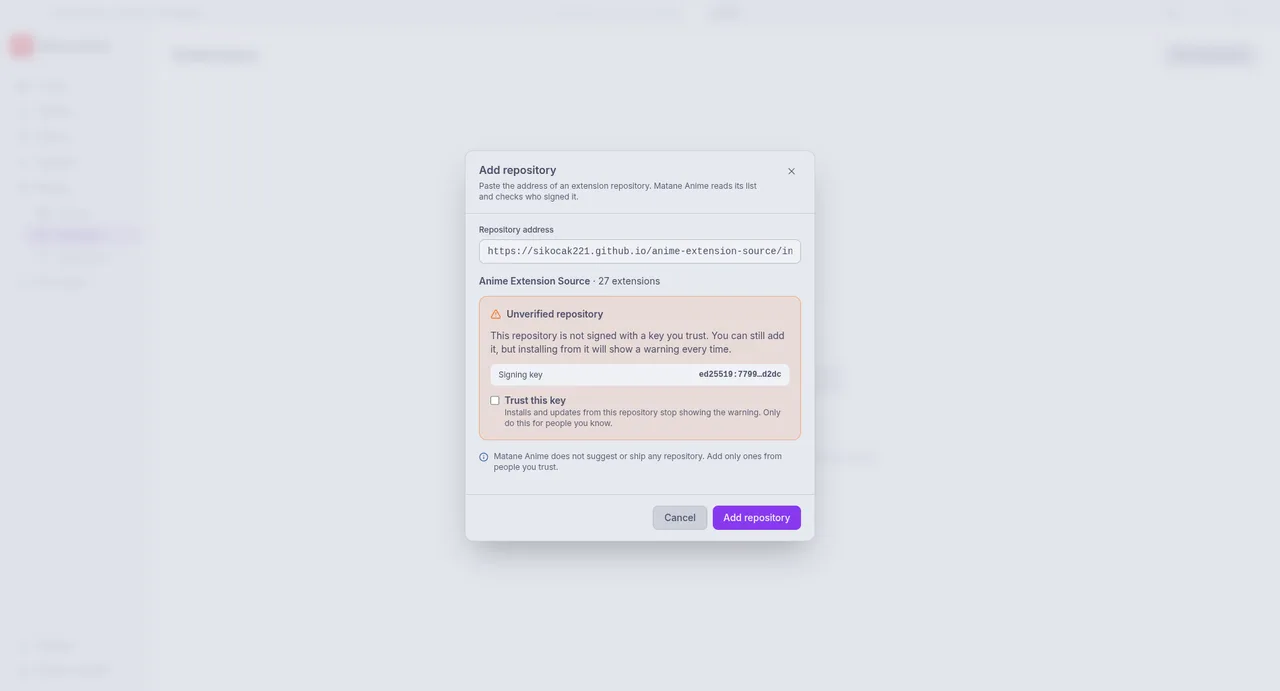
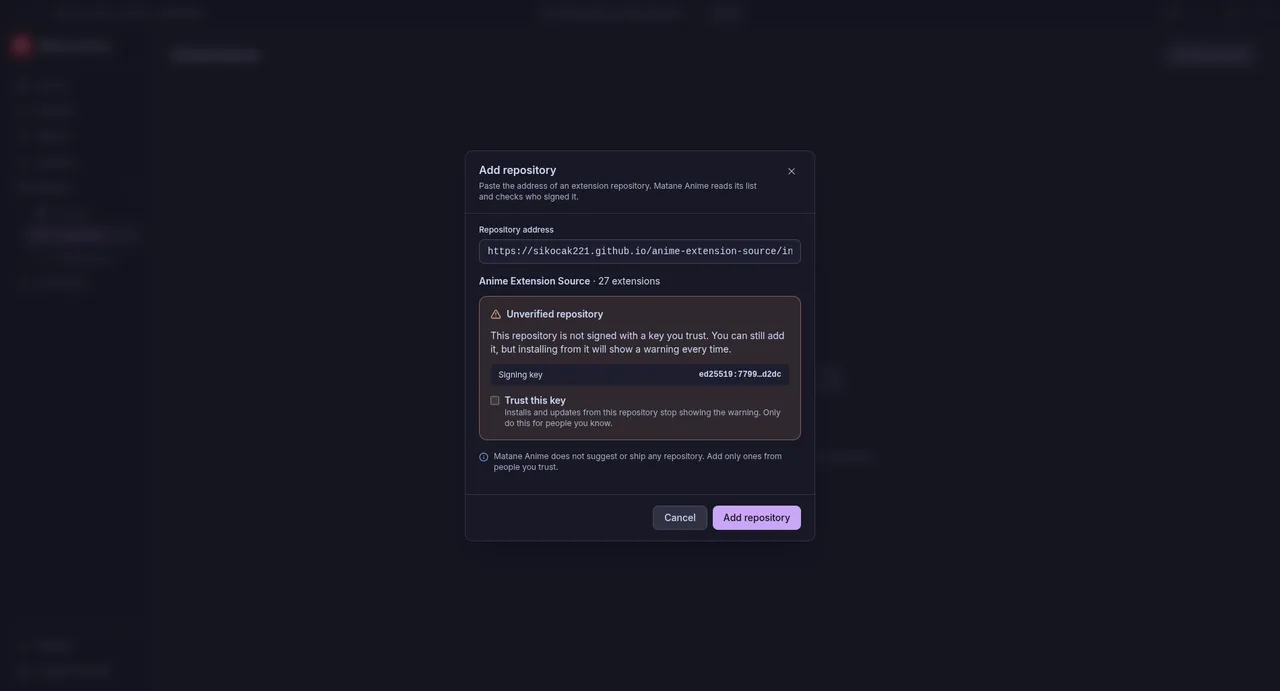
A repository is a web address that someone publishes. You get the address from the people who run it.
- Open Browse, Extensions and choose Add repository.
- Paste the repository address and choose Check repository. The app shows what it contains and who signed it.
- Decide whether to trust the key, then add the repository.
- Open the Available tab and Install the extensions you want. A dialog shows the details; nothing is written until you confirm.
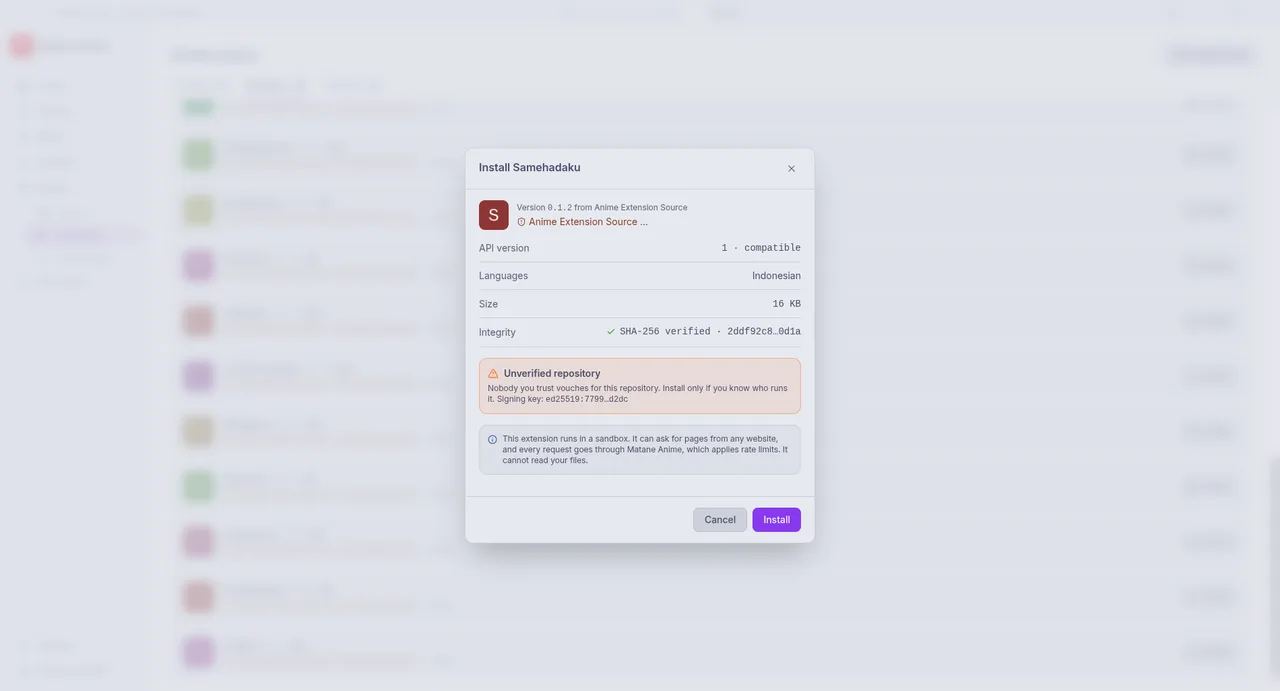
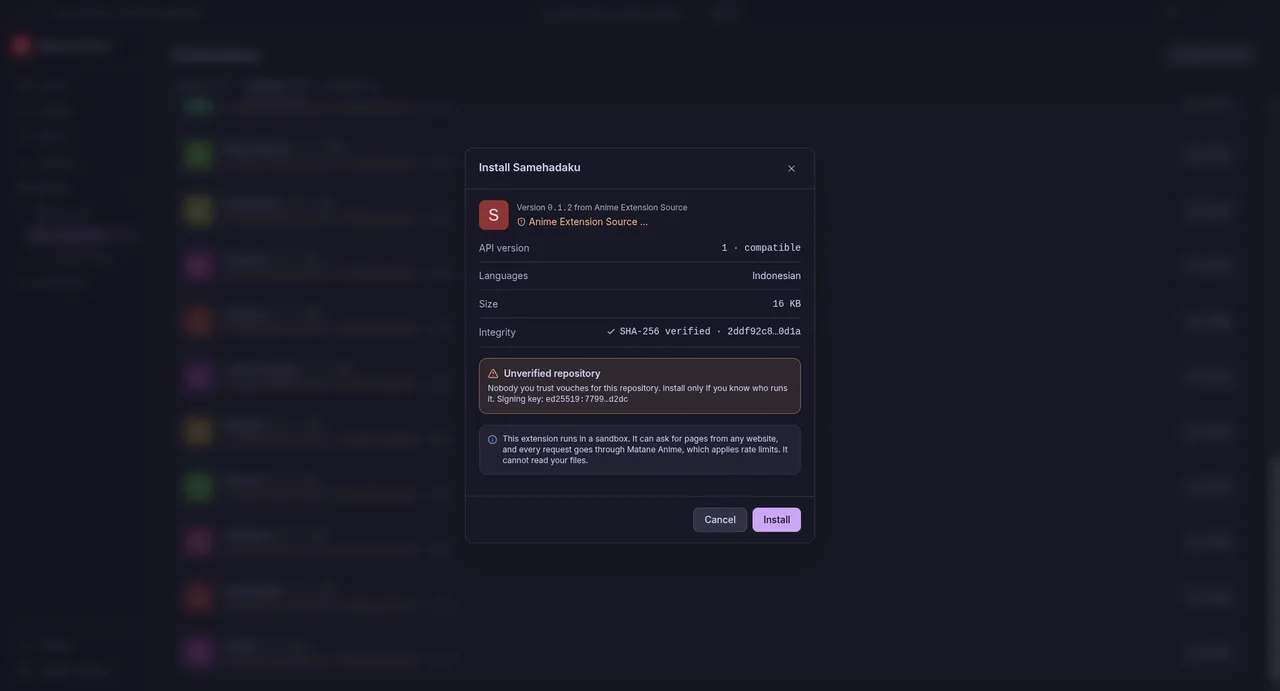
The full explanation, including what trust means, is in Extensions and repositories.
Loading an extension from a folder
If you have an extension as a folder (you wrote it, or a developer gave it to you), turn on Settings, Advanced, Developer mode, then choose Load from folder on the Extensions page. See Developer mode.
Adding anime to your library
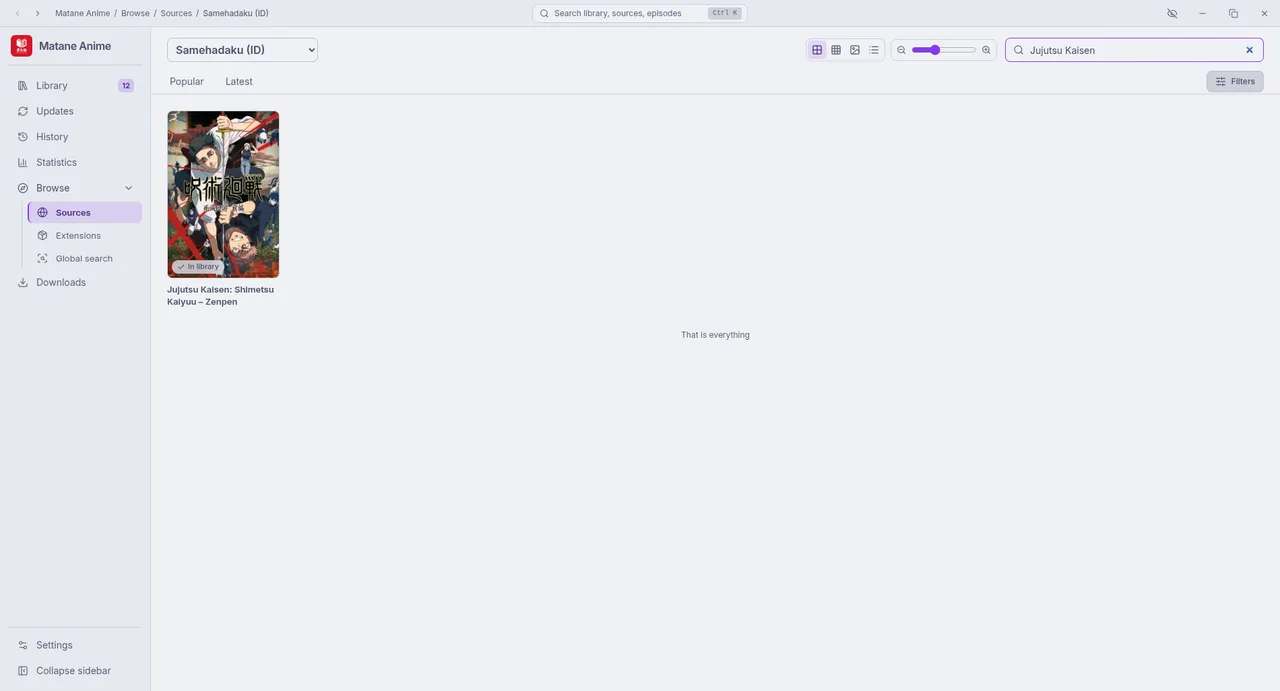
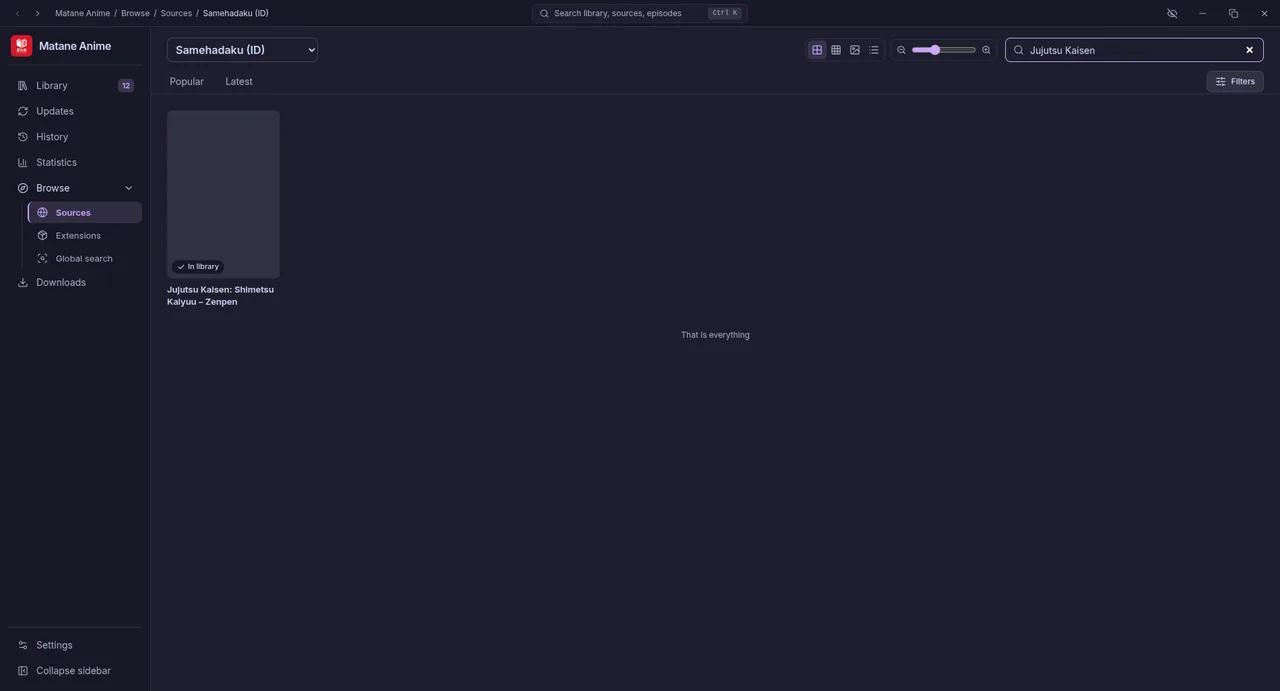
- Open Browse and pick a source.
- Look through the list, or use the search box.
- Open an anime to see its description and episodes.
- Choose Add to library. It now appears in Library, and the app remembers your progress in it.
To watch, choose Start watching or click an episode. The next time, Continue opens the right episode.
Additional setup
Searching with Global search
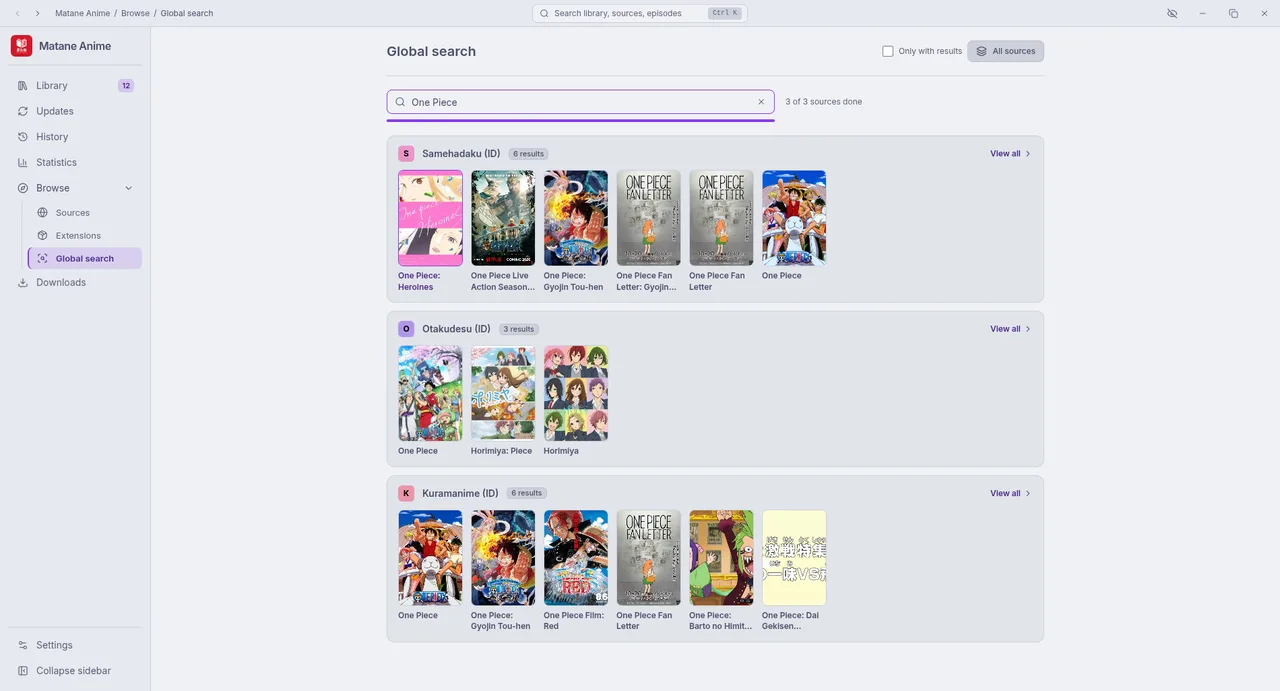
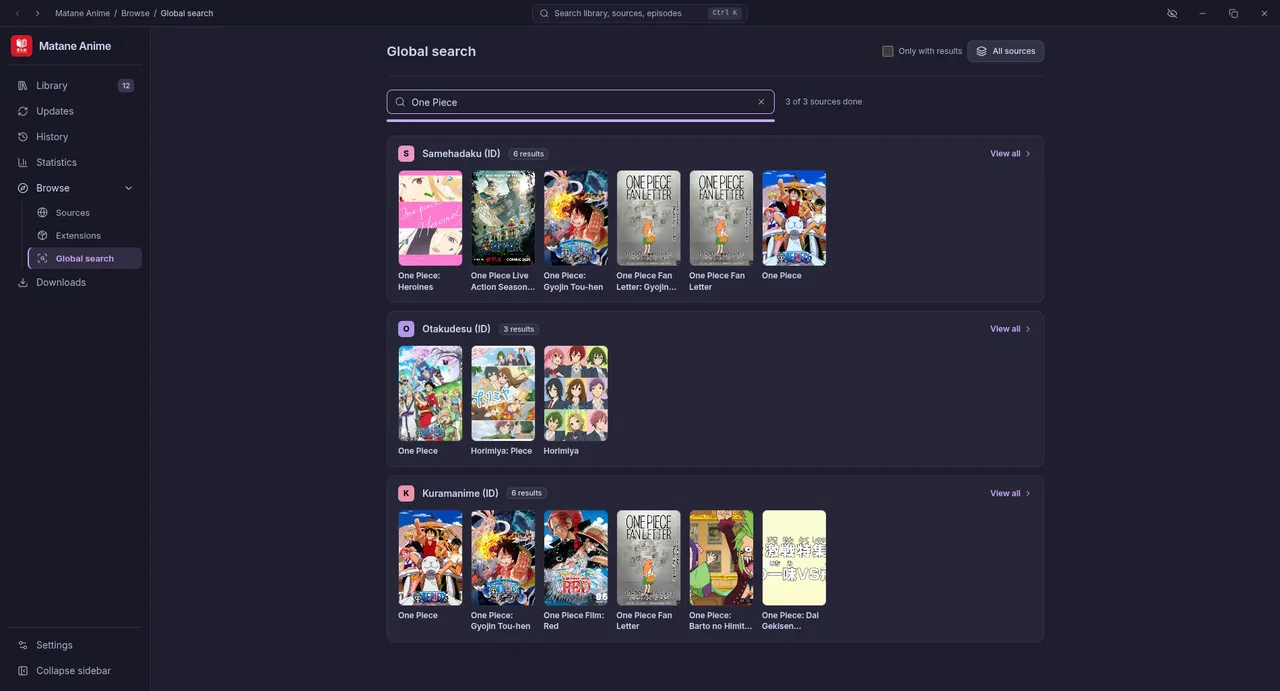
If you do not know which source has an anime, search all of them at once.
- Open Browse and choose Global search, or press Ctrl+K and pick Search "…" in all sources.
- Type a title and press Enter. The results are grouped by source, and you can limit the sources or languages, or show only sources with results.
- Open a result, or choose View all to see everything one source found.
If a site wants a browser check, the result says Verification needed; choose Solve check and the app opens the page for you (Network).
Trouble finding a specific anime?
Try other spellings. Sources spell titles differently. Try the romaji, the English title, or fewer words.
"Shingeki no Kyojin" instead of "Attack on Titan"
Leave out the season. Many sources list all seasons under one title, or name a season differently.
"Mob Psycho" instead of "Mob Psycho 100 III"
Drop punctuation and subtitles. A colon or a long subtitle can stop a match.
"Fate Zero" instead of "Fate/Zero"
Try another source. Not every source carries every anime. If one is empty or broken, see Troubleshooting.
Next steps
- Organise your library with categories, and get told about new episodes.
- Learn the player: Watching and progress and Player settings.
- Keep episodes for offline: Downloads and offline.
- Back up your data: Backups.
- Look through every option: Settings reference.