
Library
The library is the anime you chose to keep, with your progress in each.
Adding anime
Open Browse, pick a source and look through it, or search it. Browse, Global search searches every installed source at once and shows the results grouped by source; the command palette (Ctrl+K) can start the same search. See Getting started for the steps.
On an anime's page, Add to library keeps it, and removing it works the same way. You can also right-click an anime in Browse and choose Add to category…. Covers of library anime are kept on disk, so the library looks the same offline, and they are refreshed when the metadata is refreshed.
Organising
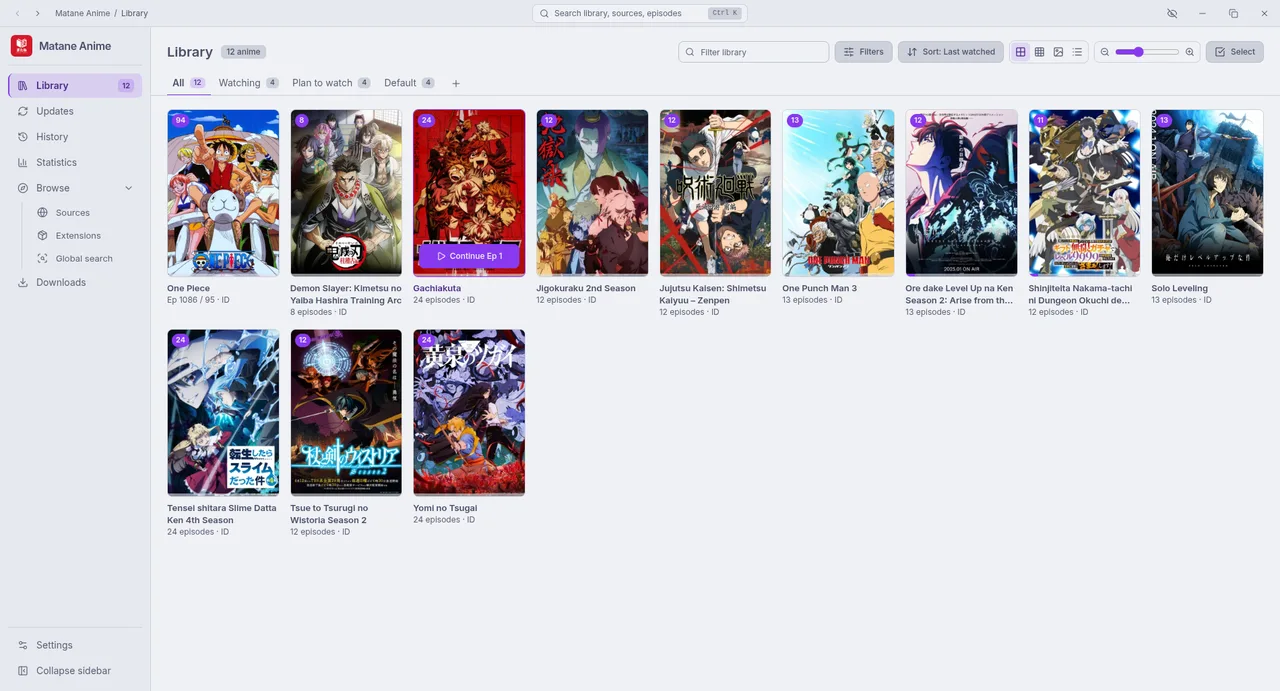
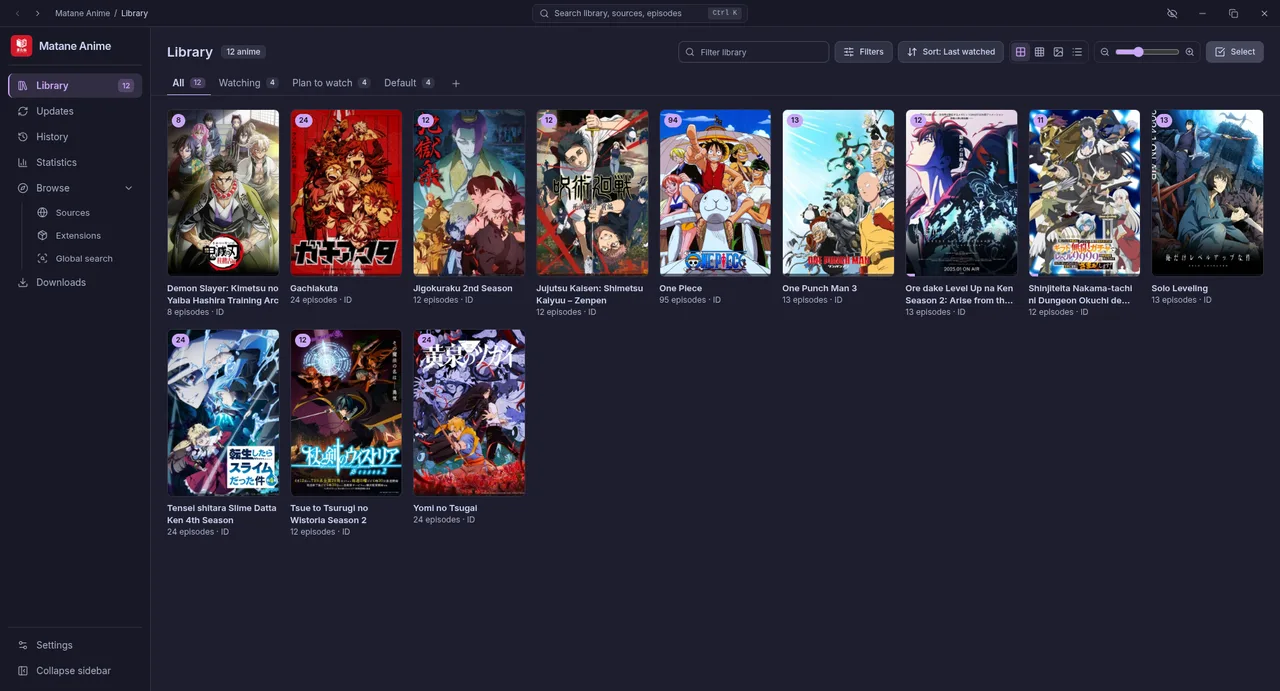
- Categories appear as tabs. An anime can be in several at once, or in none; see Categories.
- Display: comfortable grid, compact grid, covers only or a list. The grid displays have a Cover size slider (100 to 280 px), and a badge on each cover shows how many episodes you have not watched. A source's list in Browse has the same choices. The display, size, sort and filters are remembered when you close the app; the category tab and the search text are not.
- Filter by unwatched, started, downloaded, status or source, and sort by title, last watched, latest episode, date added or number of unwatched episodes. Reverse order flips the direction.
- The search box filters the current view by title and alternative titles.
- Select several anime to move them to another category, mark them watched, download them or remove them.
- Continue watching on a card opens the right episode (Watching and progress).
On an anime's page
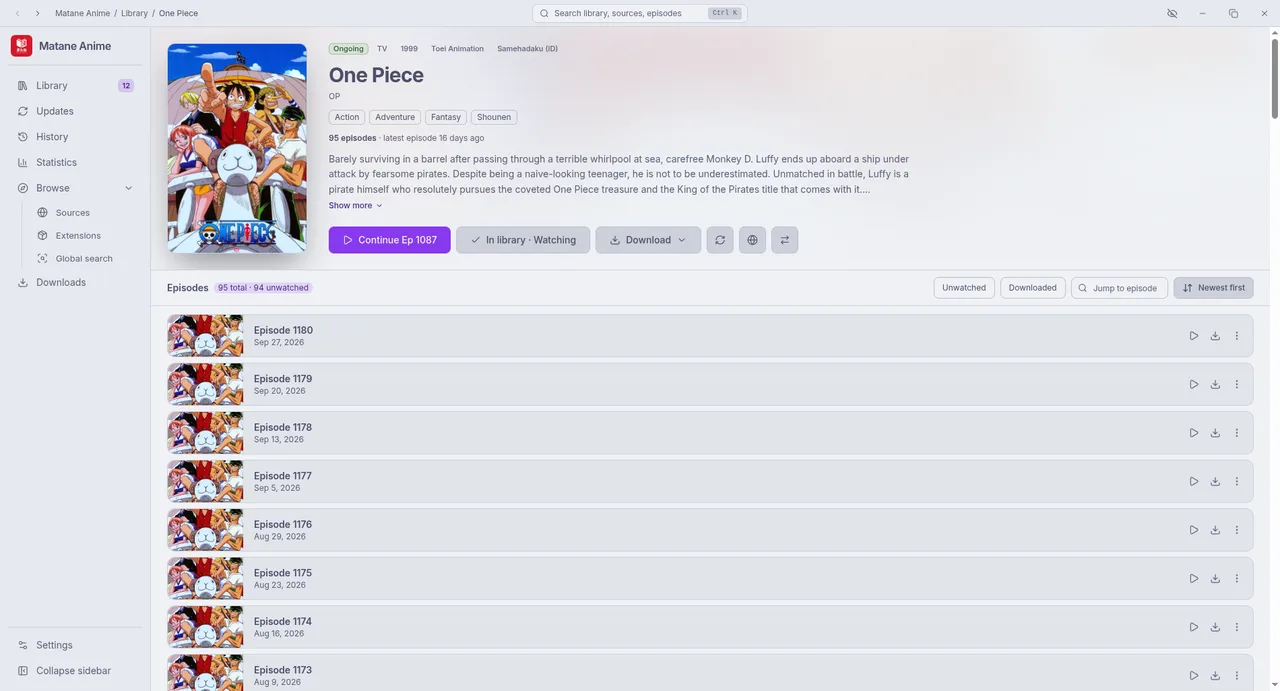
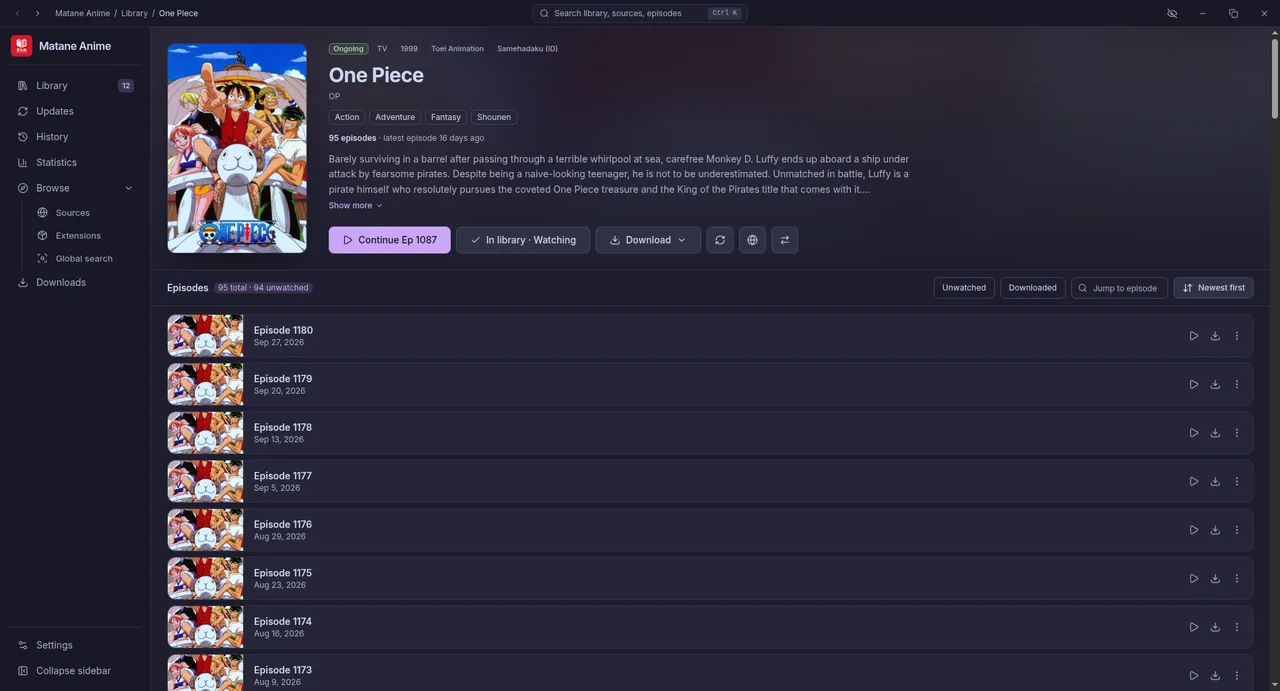
The page lists the episodes with their state: Watched, Downloaded and, when a source dropped an episode you had watched, started, downloaded or in history, Removed by source (the app keeps it).
- Start watching or Continue opens the episode to watch next.
- Sort the list newest or oldest first and filter it by unwatched or downloaded; the choice is remembered for that anime.
- Right-click an episode (or use its menu) to mark it watched or not watched, mark all previous as watched, reset progress, download it, or delete its download.
- Select several episodes to download, mark or delete them together.
- Refresh asks the source again. If the source cannot be reached, the app shows what it saved earlier.
- Open in browser opens the anime's page on the source's website.
Progress and history
Matane Anime remembers where you stopped in every episode. History lists what you watched recently (Watching and progress). To watch without leaving a trace, use Incognito. For numbers over time, see Statistics.