
Categories
Categories group your library the way you like: by what you are in the mood for, by season, by who you watch with. They are optional. An anime can be in several categories at once, or in none.
The library shows an All tab with everything, a tab per category and, once you have at least one category, a Default tab with the anime that are in none.
Making and managing categories
Open Settings, Library, Categories to:
- Add a category with a name. The + button beside the tabs in the library does the same.
- Rename it.
- Move it up or down to change the order of the tabs.
- Delete it. The anime in it stay in your library.
You can also right-click a category tab in the library to rename it, move it left or right, turn Auto-download new episodes on or off for it, or delete it.
Putting anime in a category
- On an anime's page, or from the context menu in Browse and the library: Move to category… / Add to category….
- In the library, Select several anime and choose Move to category.
Using categories
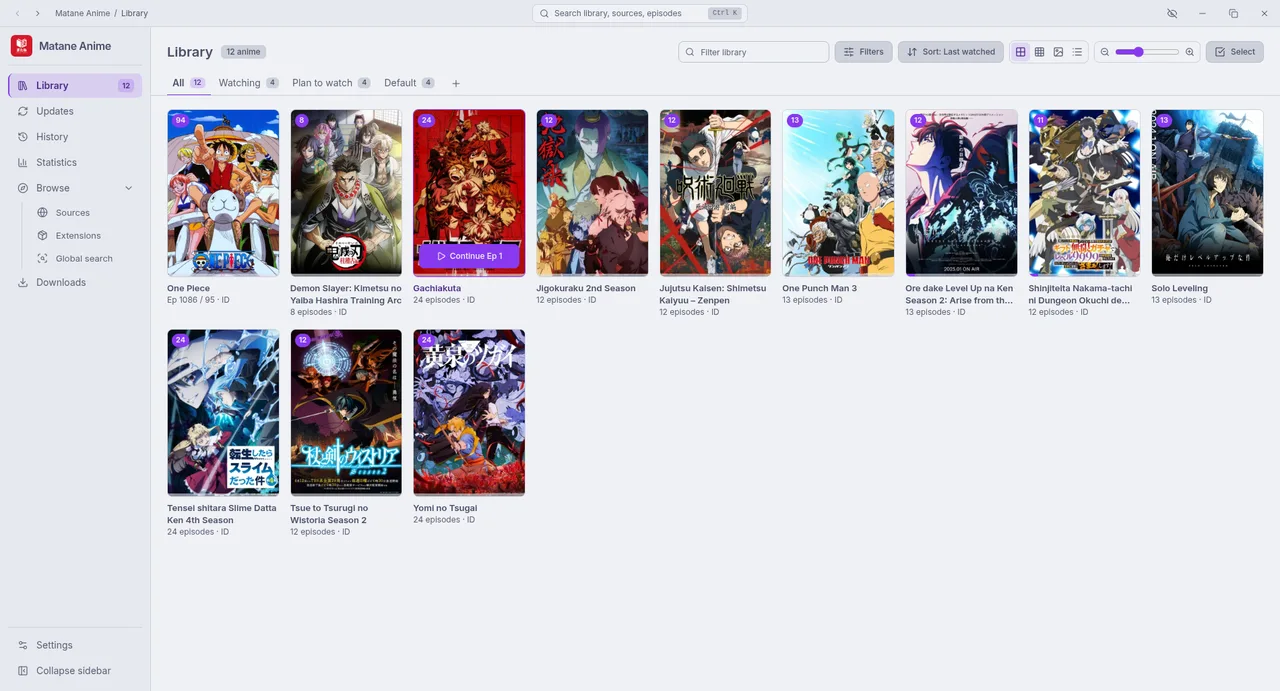
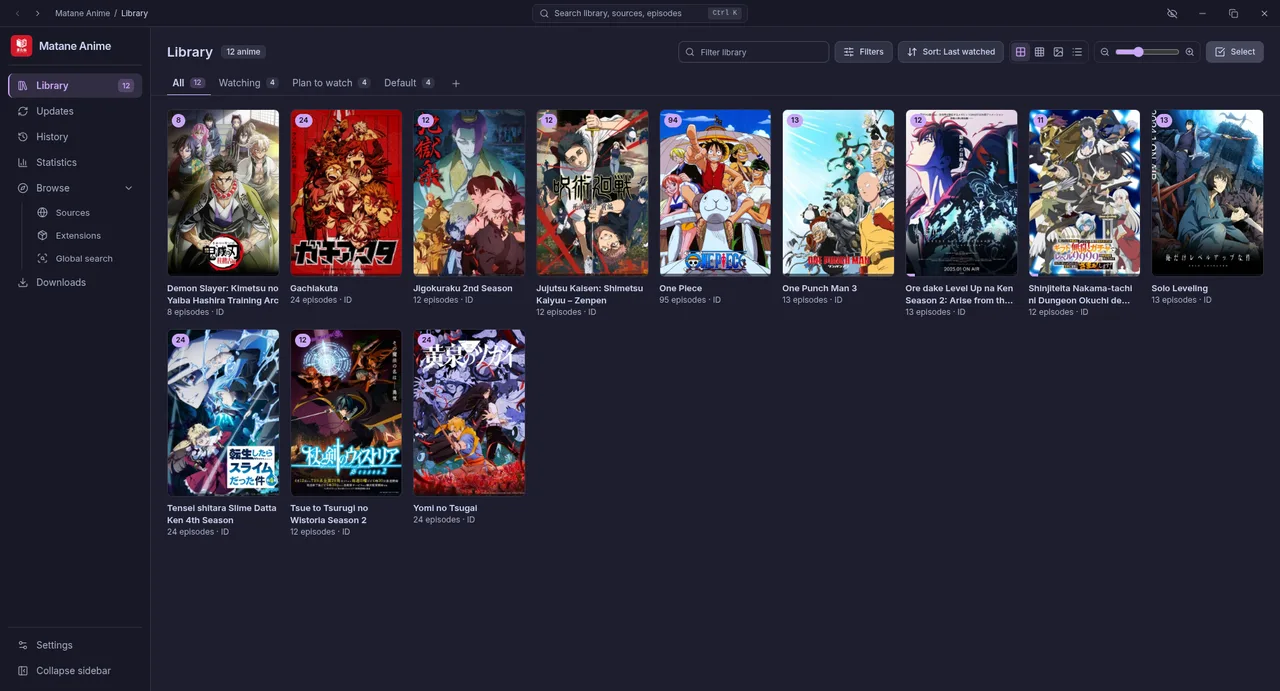
- Each category is a tab in the library. The tab you last used is not remembered after you close the app.
- Library and category new-episode checks can run for one category only.
- Auto-download can include or exclude categories, and Settings, Downloads can keep the downloads of some categories after you watch them.
- The command palette can jump to anime in any category.
- Categories are part of a backup.