
Player settings
Settings, Player controls how playback behaves. How the player picks a stream, falls back and saves your position is explained in Watching and progress.
Playback
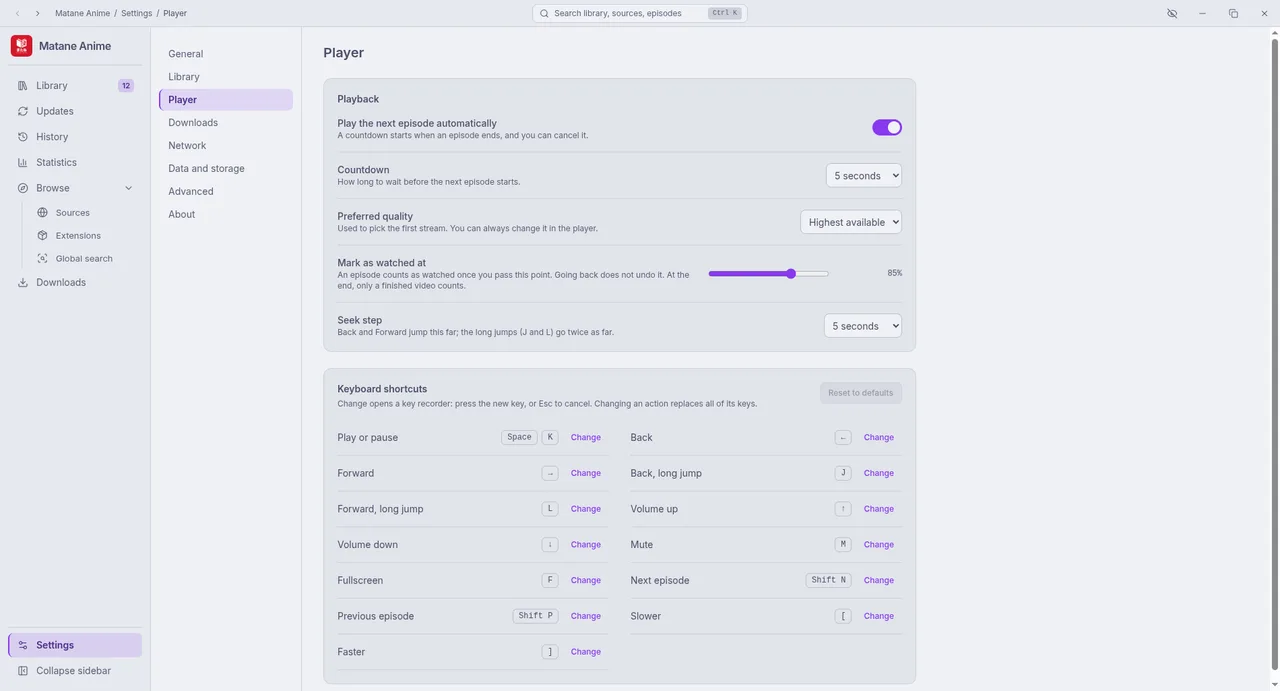
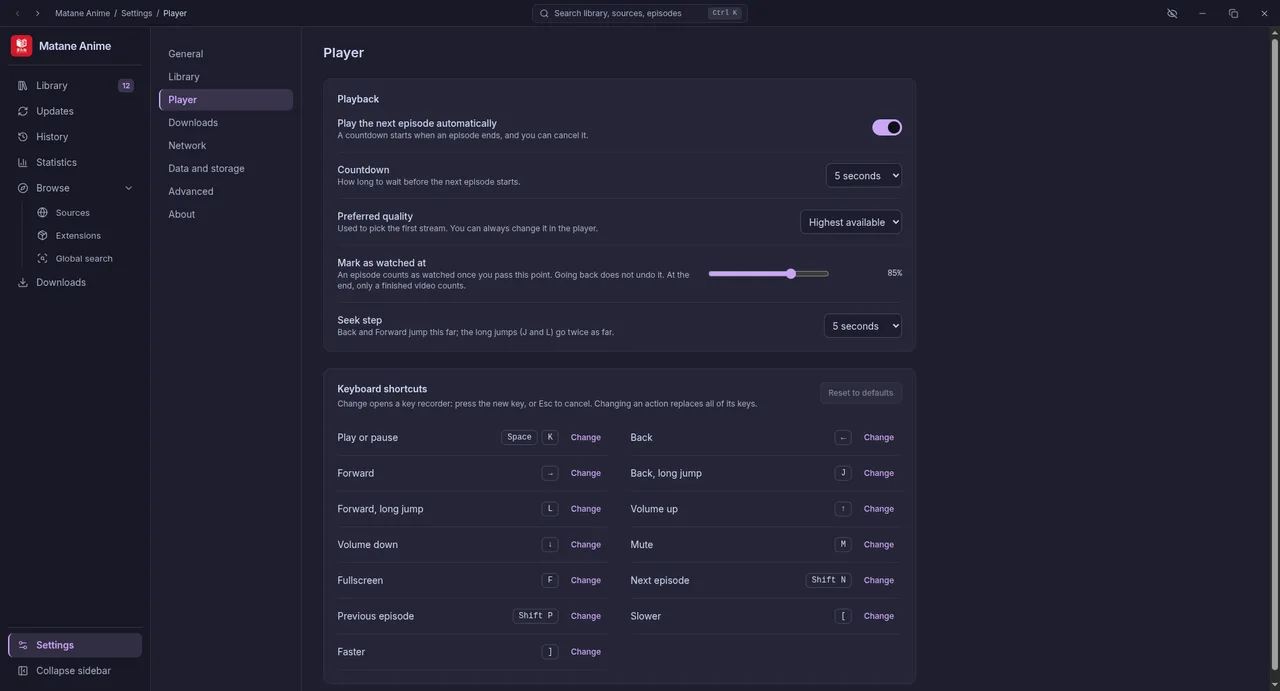
| Setting | What it does |
|---|---|
| Play the next episode automatically | When an episode ends, a countdown starts and the next one plays. You can cancel it. |
| Countdown | How long to wait before the next episode starts: 3, 5 (the default) or 10 seconds. |
| Preferred quality | Highest available, 1080p, 720p, 480p or 360p. Used to pick the first stream; you can always change it in the player's server menu. |
| Seek step | How far the back and forward keys jump. The long jumps (J and L) go twice as far. |
| Mark as watched at | The point where an episode counts as watched, from 50% to 100% (85% by default). Going back does not undo it. At 100%, only a finished video counts. |
Keyboard shortcuts
These are the defaults.
| Key | Action |
|---|---|
Space / K | Play or pause |
← / → | Seek back or forward (5 s) |
J / L | Long seek back or forward (10 s) |
↑ / ↓ | Volume up or down |
M | Mute |
F | Fullscreen |
Shift+N / Shift+P | Next or previous episode |
[ / ] | Slower or faster |
Esc | Leave fullscreen, or go back |
With the mouse: click plays or pauses, double click toggles fullscreen, the wheel changes the volume. Media keys work too.
Changing a shortcut
In Settings, Player, Keyboard shortcuts:
- Choose Change next to an action. A key recorder opens.
- Press the new key, or Esc to cancel.
- Changing an action replaces all of its keys. If the key is already used for another action, the app tells you which one; change that one first.
Reset to defaults puts them all back.
Everywhere else
Ctrl+K (⌘+K on macOS) opens the command palette. It is not available inside the player.